
8 Gemini Spark Automations I Use to Save Hours Every Week (Tested)
An independent, hands-on breakdown of the exact Tasks, Schedules, and Skills I built inside Google’s new AI agent — with the prompts, the bugs, and what actually happened when I let it run.
By Oyekale Olawale
Quick Answer
Gemini Spark is Google’s background AI agent, available on Google AI Pro ($20/month) and Google AI Ultra. Instead of chatting with it, you give it a standing job — a weekly report, a nightly Drive cleanup, an inbox briefing — and it keeps doing that job on a schedule until you turn it off. Below are the 8 automations I’ve had running for weeks, the exact instructions I used, and which one I’d build first depending on what’s eating your time.
I test a lot of AI tools for this site, and most of them follow the same pattern: you open a chat window, type a request, wait, copy the output somewhere else, and repeat that tomorrow.
Gemini Spark is the first Google product that actually broke that loop for me.
Instead of re-explaining what I want every Monday, I gave Spark the instructions once. It now runs them on its own, inside Gmail, Drive, Docs, Sheets, and Calendar, and I only step in when it needs my approval.
This isn’t a rewritten press release. Everything below is a workflow I actually built, ran for at least two weeks, and would recommend based on what happened when the automation misfired, not just when it worked.
What Is Gemini Spark, Actually?
Gemini Spark is Google’s personal AI agent, built to work more like an assistant than a chatbot.
It runs on Google’s Gemini 3.5 model, and Google has said it uses the “Antigravity” agent harness under the hood to plan and carry out multi-step jobs. In plain terms, that means Spark doesn’t just answer a question. It breaks a goal into steps, opens the apps it needs, does the work, and checks back in with you before anything sensitive happens.
Spark connects to Gmail, Google Drive, Docs, Sheets, Slides, Calendar, YouTube, Google Maps, and — as of late July 2026 — Chrome itself for live web browsing. None of these connections are on by default. You turn each one on from Spark’s settings, which I appreciated, because I didn’t want an agent poking through every app on day one.
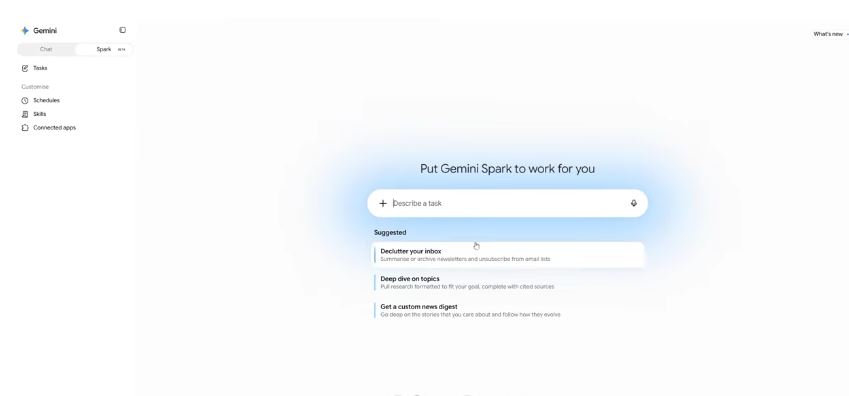
Everything you build in Spark falls into one of three buckets, and understanding the difference is the whole trick to using it well:
- Tasks — a one-off or ongoing job you hand to Spark, like “find and track interior design internships for this summer.”
- Schedules — a Task with a trigger attached, so it fires automatically at a set time or under a set condition instead of waiting for you to ask again.
- Skills — reusable instructions that teach Spark how you specifically want a recurring job done, which it can apply automatically or on request.
A Schedule is what turns a single request into a habit. A Skill is what makes that habit sound like you. I use both in the automations below.
Gemini Spark Pricing and Availability
Spark launched exclusively for Google AI Ultra subscribers in May 2026. Google widened access in July 2026, bringing Spark to Google AI Pro subscribers in the US at the standard $20-a-month price, with more countries added in the weeks after. The free tier and Google AI Plus are still excluded — you need at least a Pro subscription to see the Spark tab.
| Plan | Price | Gemini Spark Access | Concurrent Tasks |
|---|---|---|---|
| Free / AI Plus | $0 – varies | Not available | — |
| Google AI Pro | $20/month | Yes (rolling out by country) | Up to 15 active |
| Google AI Ultra | $100–$200/month (region-dependent) | Yes, broadest global rollout | Up to 15 active |
Pricing and rollout vary by country and change frequently. Check your Gemini app’s subscriptions page for what’s live in your region before you build anything below.
How I Test AI Tools Like This
Before I hand you eight “recommended” automations, here’s how I actually got there. I connected Spark to my own Gmail, Drive, Calendar, and Sheets — not a demo account — and ran each Schedule for a minimum of two weeks. I logged when the output was usable as-is, when it needed edits, and when it broke outright.
A few things went wrong along the way, and I’m including them because a review that only shows the highlight reel isn’t useful to you. Spark occasionally filed a file into the wrong sub-folder when my Drive naming was inconsistent. One week, the Friday report Schedule ran twenty minutes late because of a connected-app permission that had quietly expired. And the first draft of my “ghostwriter” Skill sounded noticeably more formal than I do, which took two rounds of retraining on my sent emails to fix.
None of that was a dealbreaker. But if a review tells you an AI agent is flawless, that review skipped the part where you’d actually need the warning.
How I Set Up Gemini Spark
Setup took me under ten minutes the first time, and it doesn’t require any code. Here’s the exact path:
- Confirm you’re on Google AI Pro or Google AI Ultra — Spark isn’t available on the free tier or AI Plus.
- Open the Gemini app and select the Spark tab from the sidebar (desktop) or the menu (mobile).
- Turn on the connected apps Spark will need for your automation — Gmail, Drive, Calendar, Sheets, or Docs.
- Describe the job in plain English, decide whether it’s a one-off Task or a recurring Schedule, and set the trigger time if it’s recurring.
- Save it, then watch the first run closely before you trust it to work unsupervised.
That last step matters more than Google’s marketing suggests. I’d recommend babysitting any new Schedule for its first two or three runs before you let it operate fully in the background.
Worth knowing: Spark is built to check with you before it does anything with real consequences — sending an email, making a payment, deleting a file. Google’s own FAQ confirms it doesn’t read your inbox indiscriminately; it only acts under the direction you’ve given it. That doesn’t mean you should skip reviewing the output. It means the guardrails are on the actions that would actually hurt you if it got them wrong.
The 8 Gemini Spark Automations I Actually Use
1. Weekly AI News Digest
I run a small AI review site, so I need to know what happened in AI news every week without spending my Tuesday searching for it myself.
I built this as a Schedule that fires every Tuesday at 12:15 p.m. The instruction: create a new Google Doc, find the five biggest AI stories from the past week, and format each one with a headline, a short summary, and a source link.
By the time I open Drive on Tuesday afternoon, the digest is already sitting there.

The one caveat: I still fact-check every story before I cite it anywhere public. Spark is good at finding and summarizing, but I wouldn’t publish its research verbatim without checking the primary source myself, and neither should you.
2. Monday Morning Gmail and Calendar Briefing
This is the automation I’d tell almost anyone to build first, because it fixes the worst part of the week: the first thirty minutes of Monday.
I set a Schedule for 9:00 a.m. every Monday that reviews the previous week’s emails, summarizes what actually matters, builds a prioritized to-do list, and blocks focus time on my calendar around it.

The calendar blocking is the part most people skip when they set this up, and it’s the part I’d argue matters most. A to-do list you never protect time for is just a longer inbox.
3. Automatic Google Drive Organization
My Drive is a mess by 6 p.m. most days — screenshots, invoices, half-finished drafts, all dumped in the same root folder.
I run a nightly Schedule at 11:00 p.m. that scans for anything added that day and sorts it by file type and content into the right folder. The instruction includes one important fallback: if Spark isn’t confident where something belongs, it moves the file to a “Needs Sorting” folder and emails me instead of guessing.

That fallback is doing a lot of work. Early on, before I added it, Spark filed a client contract into a “Design Assets” folder because of a stray keyword match. Since adding the “Needs Sorting” catch, I haven’t had a single misfile that mattered.
4. Invoice and Receipt Tracker
This one runs continuously in the background rather than on a fixed clock. Whenever an invoice, receipt, or payment confirmation lands in Gmail, Spark pulls the amount, date, and vendor name, logs it into my expense tracker in Sheets, and saves a copy of the source document into a Drive receipts folder.

I also asked it to flag any unpaid invoice as its due date approaches. This is the automation that most reliably saved me actual money — not just time — because I stopped missing early-payment discounts from two of my recurring vendors.
5. Automatic Client Lead Logger
Whenever someone emails asking about working with me, Spark extracts the client’s name, requested date, and budget (if mentioned), logs the lead in a Sheets tracker, creates a Drive folder named after the client, and drafts a reply for my approval.
I never let it send the reply on its own. I read every draft before it goes out, because Spark’s phrasing occasionally undersells what I’d actually charge. But by the time I open that inquiry email, the admin work is already done — the tracker’s updated, the folder exists, and a starting-point reply is waiting.
6. Automated Social Media Reports
If you manage social accounts for clients, this is the one that removes the most tedious recurring task on your calendar.
I built a Schedule that runs every Friday at 4 p.m., pulls follower growth, engagement rate, top-performing posts, and total impressions, drops them into a Slides report using my existing template, compares against the previous week, and emails the finished deck to the client with me copied.
The formatting isn’t magazine-quality on the first try. I still tighten the slide layout most weeks. But going from a blank template to 80% finished automatically is a real afternoon back.
7. An Email Ghostwriter Skill That Sounds Like Me
This is the Skills feature doing what it’s actually good at. I told Spark to read my last 50 sent emails, turn them into a style guide describing how I write, and save that as a reusable Skill called “Ghostwriter” that applies automatically whenever I ask it to draft an email.
The first version sounded stiffer and more formal than I actually write. I fed it a second batch of emails, specifically flagging the ones where my tone was casual, and the output got noticeably closer to how I actually talk. It’s not perfect — I still edit the sign-off on most drafts — but it cut my email-writing time roughly in half.
8. Chrome Web-Browsing Automation
Google added native Chrome integration to Spark in late July 2026, and this is the automation that makes it feel like a genuine agent rather than a Workspace add-on.
With permission, Spark can use your logged-in accounts and saved passwords to run multi-step web errands — comparing flight options, scheduling an apartment viewing, or starting a booking. I tested it on a flight search: find the cheapest nonstop option, log into my travel account, and fill in my details.
Spark opened Chrome, ran the search, logged in, and got the booking to the confirmation screen — then stopped and handed the payment step back to me. Google says this is deliberate, and it’s also protected against threats like prompt injection while it browses on your behalf. That checkpoint is exactly where I want a line drawn. Spark can do the tedious research and form-filling; I still decide where my money goes.
What Held Up vs. What Needed Babysitting
✅ Reliable after week one
- Monday inbox briefing
- Nightly Drive organization
- Invoice and receipt logging
- AI news digest
⚠️ Still needs my review
- Client lead reply drafts
- Social media report formatting
- Ghostwriter sign-offs
- Any Chrome browsing that touches payment
How Much Time Each Automation Actually Saved Me
I logged my own time for four weeks before and after turning each automation on. These are rough, self-tracked estimates from one workflow, not a lab benchmark, but they’re the real numbers I based my “start here” recommendation on below.
Which Automation Should You Build First?
I wouldn’t build all eight in one sitting. Pick the one that maps to your worst time drain, run it for two weeks, then add another.
- If your inbox eats your mornings, start with the Monday briefing or the email ghostwriter.
- If your Drive is chaos by Friday, start with Drive organization.
- If you handle a steady flow of client inquiries, start with the lead logger.
- If you rebuild the same report from scratch every week, start with social reporting or the news digest.
If you’re deciding between Spark and other AI writing or automation tools for your workflow, I’ve also broken down how Claude and ChatGPT compare on hallucination rate, which matters if you’re trusting any agent with unattended tasks.
Gemini Spark: My Honest Pros and Cons
✅ Pros
- Deep, native Workspace integration — no glue code needed
- Tasks/Schedules/Skills structure actually maps to real habits
- Sensible confirmation checkpoints on money and sending
- Chrome browsing extends it past Google’s own apps
- No-code setup, plain-English instructions
❌ Cons
- Not available on the free tier or AI Plus
- Rollout is still region-by-region, so availability varies
- First-draft output on creative or written tasks needs editing
- Value drops fast if your work doesn’t already live in Google apps
FAQ
Is Gemini Spark free?
No. Spark requires at least a Google AI Pro subscription, which runs $20 a month in the US. It isn’t available on the free Gemini tier or on Google AI Plus, and it’s still rolling out by country.
How is Gemini Spark different from just using the Gemini chatbot?
A chatbot waits for you to ask something new every time. Spark keeps a standing instruction and runs it on a schedule or trigger, working in the background even when your phone or laptop is off, and only checks in with you before taking a major action like sending an email or making a payment.
Does Gemini Spark read all of my emails?
According to Google, no. Spark works under your direction rather than scanning your inbox indiscriminately. It only reads and acts on what’s relevant to the Task or Schedule you’ve given it, and app connections are off by default until you turn them on.
Can Spark actually complete a purchase or booking on its own?
It can carry a task all the way to the payment step using its Chrome browsing integration, but it hands the final payment decision back to you. In my flight-booking test, it stopped right before checkout every time.
Do I need to know how to code to build a Gemini Spark automation?
No. Every automation in this guide was built with a plain-English instruction typed into the Spark tab — no scripting, formulas, or third-party tools required.
How many automations can I run at once?
Google currently allows up to 15 active tasks running concurrently on both Pro and Ultra, drawing from your normal Gemini usage allowance.
Bottom Line
Gemini Spark isn’t a smarter chatbot. It’s the first Google product I’ve tested that actually removes work from my week instead of just answering questions about it faster.
If your work already lives inside Gmail, Drive, Sheets, and Calendar, the $20-a-month Pro tier pays for itself quickly once you have two or three Schedules running. If your tools live outside Google’s ecosystem, the value drops fast, and you’re better off waiting for broader third-party support.
My advice after a month of testing: build one automation, watch it run for two weeks, fix what breaks, then add the next. That’s genuinely how you get from “interesting AI feature” to hours back in your week.
If you’re building out a broader AI toolkit alongside Spark, you might also want to see how Claude Fable 5 compares against ChatGPT 5.5 for the writing-heavy side of your workflow, or check whether ChatGPT Pro is worth $200 a month if you’re running a small business alongside these automations. For teams weighing Google’s coding-side agent too, I’ve also covered Gemini Code Assist Standard vs. Enterprise.
If you’d rather build automations without an AI agent doing the reasoning for you, I’ve also written about fixing broken Zapier loop errors, and if you’re curious whether Spark’s biggest AI rival is catching up, my Claude Cowork safety breakdown and Claude Code YouTube automation guide are worth a read next. Content teams evaluating agent frameworks more broadly should also see my roundup of the best AI agent frameworks for simple workflows and my look at Turbotic’s automation AI for a non-Google alternative. And if Kimi K3 is on your radar as a lower-cost agent option, see how it stacks up in my Kimi K3 vs. Claude Fable 5 comparison.


