AutoDraw Review: I Used This Free AI Sketch Tool, Here’s My Verdict
Is it still the best free drawing tool in 2026, or has it been quietly left behind by newer AI art apps? I drew on it myself to find out.
By Oyekale Olawale
Quick Answer
AutoDraw is 100% free, needs no signup, and turns rough scribbles into clean clip-art in seconds using machine learning from Google Creative Lab. It’s safe (it’s a Google property), works in any browser, and exports as PNG only. It’s not for professional illustration or teaching you to draw from scratch, it’s for fast icons, quick visuals, and low-pressure sketching, which is exactly where it shines for teachers, students, and content creators.
I’ve reviewed a lot of “AI drawing tools” on this site that turn out to be glorified template libraries with a chatbot bolted on. AutoDraw isn’t that. It’s older, simpler, and surprisingly, still relevant in 2026, mostly because nobody else has really copied its exact trick: sketch badly, get a clean icon instantly, no prompt required.
What Is AutoDraw?
AutoDraw is a free, browser-based drawing tool built by Google Creative Lab. It launched back in 2017 as part of Google’s AI Experiments platform, and it’s still hosted at autodraw.com with zero paywalls, zero account requirements, and zero ads, which is rare enough in 2026 that it’s worth noting on its own.
The core idea: you don’t need to be able to draw. You scribble a rough shape — a wobbly circle that’s supposed to be a sun, a lopsided rectangle that’s supposed to be a house — and AutoDraw’s recognition engine, trained on the same doodle dataset behind Google’s QuickDraw experiment, guesses what you’re going for. It then shows you a row of clean, artist-made icons that match. Click one, and your mess gets replaced with a polished graphic.
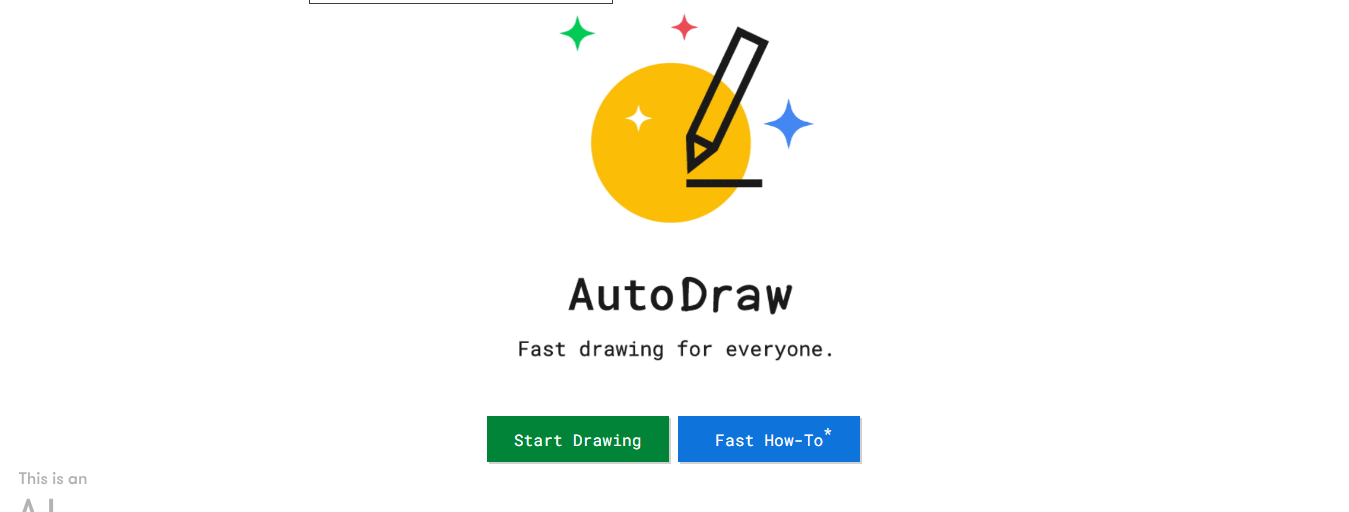
There’s no “AI generates an image from your text prompt” element here, which is worth clarifying upfront because a lot of people search for AutoDraw expecting something closer to DALL·E or Nano Banana. It’s not that. It’s closer to autocomplete, but for shapes.
Who Is AutoDraw Actually For?
After testing it myself, here’s who I’d genuinely point toward AutoDraw:
- Designers sketching out early concepts — it’s fast for rough wireframe-style icons before you move into a proper tool.
- Teachers building visual aids — diagrams, classroom worksheets, and quick infographics without needing design skill.
- Students — projects, presentations, and note diagrams get done in minutes instead of being abandoned because “I can’t draw.”
- Bloggers and social creators — quick icons for thumbnails or graphics without opening Canva or Photoshop.
- Anyone who just wants to mess around — genuinely, it’s fun. More on that below.
My Hands-On Test: What Happened When I Actually Used It
How I test tools: I don’t just read the marketing page. I open the actual product, use it the way a real reader would — cold, no tutorial — and note where it’s smooth and where it trips.
I opened AutoDraw with zero expectations and just started drawing a square. Almost immediately, a suggestion bar popped up across the top offering a handful of shape options based on my scribble — not just squares, but stylized variations I hadn’t even thought of. I picked one, and my rough box turned into a clean icon in one click. From there I kept adding to it just to see how far I could push a single doodle into something that actually looked designed. The result is the screenshot below — genuinely something I made in a few minutes with zero drawing ability involved.

A few honest notes from actually using it:
- The suggestion engine reacted fast — no lag between finishing a stroke and seeing options appear.
- It handled a basic geometric shape (my square) really well. I’d expect it to struggle more on anything abstract or highly specific, which matches what other reviewers have reported.
- There’s no way to import a reference photo to trace over — if you want to build off an existing image, you’re out of luck.
- Export is PNG only. No SVG, no vector output. Fine for quick web graphics, limiting if you need to scale something up for print.
- On a smaller screen, the toolbar felt a little tight — not broken, just clearly designed with desktop as the primary use case.
None of that is a dealbreaker. It’s just useful to know going in: AutoDraw is a shortcut tool, not a full illustration suite, and it doesn’t pretend otherwise.
AutoDraw vs. Other Drawing Tools
Here’s how it stacks up against the tools people usually compare it to:
| Tool | Price | AI Suggestions | Login Needed | Best For |
|---|---|---|---|---|
| AutoDraw | Free | ✅ Sketch-to-icon | ❌ No | Fast icons, sketching, kids/classrooms |
| Canva Draw | Freemium | ❌ No suggestions | ✅ Yes | Full design projects, templates |
| DALL·E / Nano Banana | Paid / credits | ✅ Text-to-image | ✅ Yes | Complex scenes, full illustrations |
| Procreate / Illustrator | Paid, one-time/subscription | ❌ No | ✅ Yes | Professional-grade illustration |
Is AutoDraw Safe to Use?
Yes. AutoDraw is a Google Creative Lab product hosted directly on Google’s own domain, so you’re not handing your data to some unknown third-party site. There’s no account creation, no email capture, and no login wall — you land on the canvas and start drawing immediately, which also means there’s nothing tied to your identity while you use it.
The one thing worth being deliberate about: if you plan to use the clip-art suggestions commercially (in a paid product, a client project, a monetized YouTube channel, etc.), check AutoDraw’s terms of use for the illustration library before you lean on it heavily. The tool itself is safe from a security standpoint — the caution is purely about licensing, not malware or data risk.
What Is AutoDraw Used For?
In practice, people use AutoDraw for:
- Quick icons and graphics for blog posts, presentations, and thumbnails
- Classroom visual aids — teachers sketching diagrams live in front of students
- Wireframing and early concept sketches for designers before moving to Figma or Illustrator
- Casual doodling and games — it’s genuinely popular for exactly this, no productivity angle required
- Teaching kids that AI can be a creative assistant rather than a replacement for effort — a nice, low-stakes way to introduce the concept
What Is the Best App That Teaches How to Draw?
Honest answer, because I’d rather you trust this review than force AutoDraw into a role it doesn’t fill: AutoDraw doesn’t really teach you to draw. It replaces your sketch, it doesn’t correct or coach it. If your goal is genuinely learning to draw — not just producing a finished icon — these are better fits:
- Procreate (iPad) — layered practice with reference tools and guided brush controls, popular with serious beginners
- Adobe Fresco — good for learning traditional-feeling brush technique digitally
- SketchBook — free, beginner-friendly, with symmetry and perspective guides built in
- Drawabox (a structured online course, not an app) — the closest thing to actual “drawing lessons” if fundamentals are your goal
Where AutoDraw does fit into learning: it’s a low-pressure on-ramp. For a student or beginner who’s intimidated by a blank canvas, sketching something rough and watching AI clean it up can build confidence before they move to a tool that actually teaches technique.
Pros and Cons

✅ Pros
- Completely free, no hidden tiers
- No signup or login required
- Fast, accurate suggestions for common shapes
- Works across desktop, tablet, mobile browsers
- Zero learning curve
- Backed by Google — safe and reliable uptime
❌ Cons
- PNG export only — no vector/SVG
- No image import to trace over
- Struggles with abstract or niche sketches
- No layers or advanced editing
- Mobile toolbar feels cramped
- Doesn’t actually teach drawing technique
Pricing
There’s genuinely nothing to compare here — AutoDraw has no paid tier, no credit system, no premium unlock. It’s free in the browser, on any device, indefinitely, which is unusual enough for an AI-adjacent tool in 2026 that it’s worth restating plainly. If you’re evaluating this against tools that gate features behind subscriptions, like Templated.io or Sivi AI, AutoDraw wins on cost every time — it just does a narrower job.
Where AutoDraw Fits Alongside Other Free Tools
If icons and sketches are just one piece of a bigger content workflow, it’s worth knowing what else is out there. For stock imagery and design assets, Freepik covers a lot more ground than AutoDraw’s clip-art library. If you need a logo rather than an icon, LogoFast is built specifically for that job. And if 3D or stylized icon sets are more your thing, Thiings.co is a fun free alternative worth bookmarking alongside AutoDraw rather than instead of it.
For teachers and students specifically, AutoDraw sits naturally next to our broader look at how AI usage is growing among students and teachers, and our roundup of the best AI tools for academia. If you’re building visual aids for younger learners, our list of popular websites for children’s education is a good companion piece. And if you just want to browse more no-cost options in general, our free AI tools hub keeps an updated list.
FAQ
Is AutoDraw completely free?
Yes. There’s no paid tier, no subscription, and no signup required to use it.
Does AutoDraw work on mobile?
Yes, it works in mobile browsers on phones and tablets, though the toolbar is more comfortable on a larger screen.
Can I use AutoDraw offline?
No. It’s entirely browser-based and requires an internet connection to load the suggestion engine.
What file format does AutoDraw export?
PNG only. There’s no vector (SVG) export option.
Is AutoDraw good for kids and classrooms?
Yes — no login, no cost, and an interface simple enough that young students can use it without instruction.
Who owns AutoDraw?
Google Creative Lab built and maintains it, part of Google’s broader AI Experiments platform.
Bottom Line
AutoDraw isn’t trying to be Procreate, and it isn’t trying to be DALL·E. It’s doing one specific thing — turning a rough scribble into a usable icon in seconds — and it still does that better than almost anything else free in 2026. If you need fast visuals for a classroom, a blog post, a presentation, or you just want to kill ten minutes making something that looks better than you expected, it’s an easy yes. If you’re after professional-grade illustration or you actually want to learn to draw, this isn’t your tool — but it was never trying to be.


