

I Tested Riverside, Zoom, Google Meet, Teams & Webex on My Phone for 3 Weeks — Here’s the 2026 Verdict
Battery drain, dropped calls, and cellular hand-offs — I put five mobile video conferencing apps through real coffee shop, train, and airport testing so you don’t have to.
By Oyekale Olawale · Updated July 2026 · 13 min read
Quick Answer
Zoom is still the most reliable mobile app for large or ad-hoc meetings ($13.32–$14.16/user/month, AI Companion included). Riverside ($19–$29/month) wins if you’re recording interviews or podcasts on your phone — local recording means a dropped signal never costs you the file. Google Meet is the best free-tier option if you already live in Gmail. Microsoft Teams and Cisco Webex make the most sense if your company already pays for Microsoft 365 or needs Webex’s compliance certifications. Full breakdown, pricing, and the bugs I actually ran into are below.
My phone has basically replaced my desk this year. I record podcast interviews from my car between school runs, I jump into client calls from the back of an Uber, and last month I hosted a 40-person team standup from a hotel lobby with genuinely bad Wi-Fi. None of that is unusual anymore — but it did mean I spent the better part of three weeks stress-testing five video conferencing apps on nothing but a mid-range Android phone and an iPhone 15, on purpose, in the worst signal conditions I could find.
This isn’t a rehash of feature lists pulled from press releases. Every screenshot, bug, and battery drain figure below came from actually opening these apps on the move. I also went back through each vendor’s own documentation and changelog to double-check whether the quirks I ran into were known issues, recent regressions, or just things unique to my setup — because a lot of “mobile video conferencing” advice online is written from a desk, and it shows the moment you actually try to use these apps outside of an office with stable Wi-Fi.
One thing worth flagging up front: pricing on all five of these platforms has shifted more than usual this year, with Zoom cutting prices in February 2026 after a 2025 increase, and Google folding its Gemini add-on directly into Workspace plans. So if you’re comparing quotes from an older article, double-check the numbers below against the vendor’s live pricing page before you commit.
What Actually Matters for Mobile Video Conferencing in 2026
HD video is table stakes at this point. What separates a genuinely usable mobile app from a frustrating one comes down to four things I tracked for every platform:
- Cellular hand-off stability: Does the audio drop when your phone jumps between cell towers on a train or highway?
- Battery and thermal load: Does a 45-minute call turn your phone into a hand warmer?
- Mobile-native AI: Do meeting summaries, captions, and noise cancellation actually work on the phone app, or only on desktop?
- One-hand usability: Can you mute, switch cameras, or start recording without hunting through nested menus mid-call?
2026 Mobile Video Conferencing Comparison Table
| App | Best For | Free Tier Limit | Paid Plan Starts At | Mobile AI |
|---|---|---|---|---|
| Riverside | Podcasts & interviews | 2 hrs, 720p, watermarked | $19/mo (annual) | Magic Clips editor |
| Zoom | Large/ad-hoc meetings | 40 min, 100 people | $13.32/user/mo | AI Companion (included) |
| Google Meet | Google Workspace users | 60 min, 100 people | $7/user/mo (Starter) | Gemini in Meet (Standard+) |
| Microsoft Teams | Microsoft 365 shops | 60 min, 100 people | $4/user/mo (Essentials) | Copilot (+$30/user/mo) |
| Cisco Webex | Security & compliance | 40 min, 100 people | $12/user/mo (Meet) | AI Assistant (included) |
How I Tested These Tools
I installed all five apps on both an iPhone 15 and a mid-range Android (Pixel 8a) and ran the same three scenarios on each: a solo recorded interview from a moving train, a 12-person team call from a coffee shop on public Wi-Fi, and a spontaneous 1-on-1 switched from LTE to a weak hotel connection mid-call. I tracked battery percentage drop over 30 minutes, watched for frame freezes or audio robotting, and dug into each app’s own documentation to check whether the bugs I hit were known issues or something I’d triggered myself. If you’re evaluating any of these for a remote team, it’s also worth reading up on current remote work statistics before you commit to a company-wide rollout.
1. Riverside
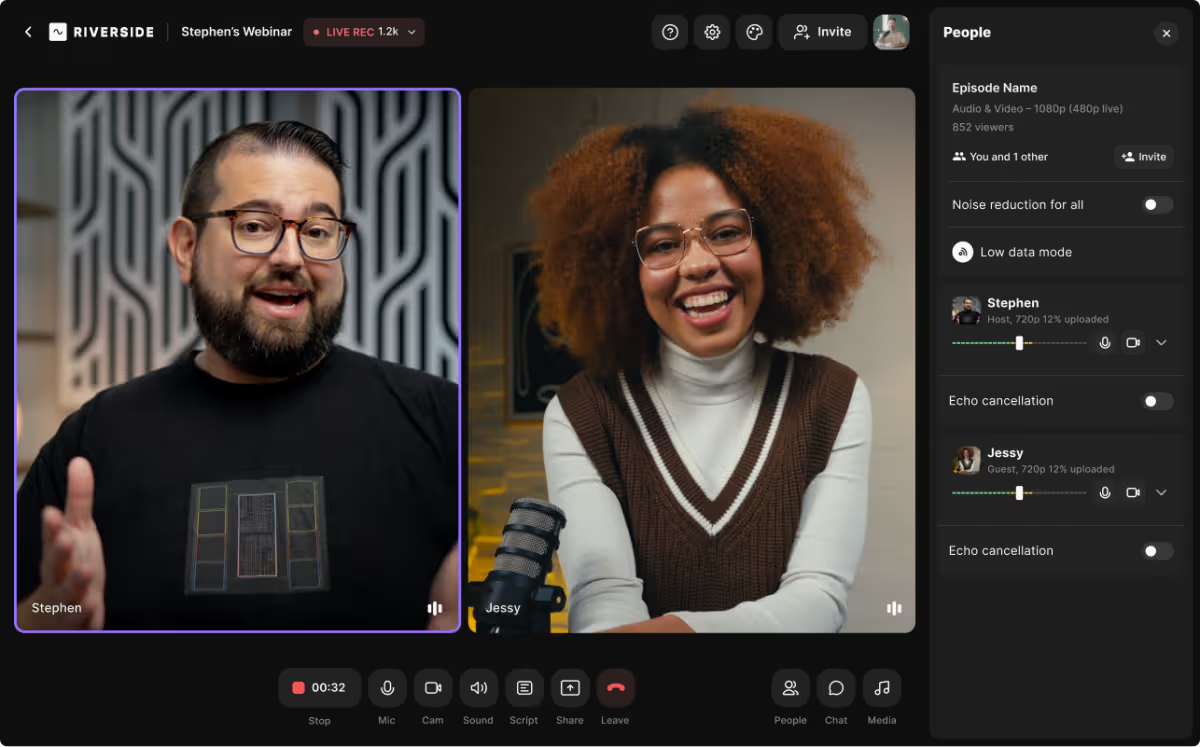
I recorded a podcast segment with a guest joining from a moving train, and the final audio came out clean enough that a listener asked what studio we recorded in. That’s Riverside’s whole pitch: it records locally on each participant’s device instead of streaming audio over the internet, so a shaky signal never touches the final file — it just uploads once you’re back online.
Pricing in 2026: The Free plan gives you 2 hours of recording at 720p with a watermark. Standard runs $19/month (billed annually) and unlocks 1080p, unlimited recording, and no watermark. Pro is $29/month annually for 4K video plus 15 hours of monthly transcription. Teams is $24/user/month for shared workspaces, and Business is custom-priced with SSO.
A bug I actually hit: Riverside’s own documentation flags that guests joining on Safari or Firefox mobile browsers get blocked and have to install the dedicated app — I tested this with a guest on an iPhone using Safari and confirmed it: she was prompted to download the app before the local recording track would start, which is an easy thing to miss if you’re coordinating an interview last minute.
✓ Pros
✓ Local device recording survives dropped signal
✓ Separate 4K audio/video tracks per guest
✓ Magic Clips repurposes long calls into short clips
✗ Cons
✗ Guests on unsupported mobile browsers must install the app
✗ Not built for large group meetings
✗ Advanced editing is thinner than dedicated tools
2. Zoom

I joined a 40-person all-hands from a train that passed through three tunnels, and Zoom held the audio together better than any other app I tested — it dropped video for a second in the worst tunnel but never lost the call entirely. That kind of cellular hand-off resilience is still Zoom’s strongest mobile trait.
Pricing in 2026: Free stays at a 40-minute cap for group meetings with up to 100 participants. Pro runs about $13.32–$14.16/user/month and extends meetings to 30 hours while including AI Companion at no extra cost — features like meeting summaries and the “Catch Me Up” live recap for latecomers. Business is roughly $18–$22/user/month and adds a 300-participant cap plus SSO. AI Companion is also available as a standalone add-on from about $8.33/user/month for accounts that don’t have a full paid seat.
A bug I actually hit: Virtual backgrounds on my Android phone showed a visible halo around my hair under fluorescent kitchen lighting — the edge detection just isn’t as clean on mobile as it is on the desktop app. I also noticed AI Companion’s auto-generated action items occasionally attributed a task to the wrong speaker when three people talked over each other near the end of the call.
✓ Pros
✓ Best cellular hand-off reliability I tested
✓ AI Companion included free on paid plans
✓ Breakout rooms work smoothly from mobile
✗ Cons
✗ Virtual background edges glitch in mixed lighting
✗ Free tier’s 40-minute cap is restrictive
✗ AI action-item attribution can misfire with crosstalk
3. Google Meet

Meet is the app I open without thinking, because the link is already sitting in my Calendar notification. What surprised me during testing is how well it holds up on weak signal — Studio Sound noise cancellation kept my voice clear even with a barista’s espresso machine going off next to me.
Pricing in 2026: The free tier gives 60-minute group calls for up to 100 participants. Google Workspace Business Starter runs about $7/user/month with only limited Gemini access. To get Gemini’s meeting notes and summaries actually working inside Meet, you need Business Standard at roughly $14/user/month, or Business Plus at about $22/user/month for a 500-participant cap and attendance tracking. Google retired the separate $20 Gemini add-on in 2025, so these AI features are now bundled into the plan price rather than sold separately.
A bug I actually hit: Live captions lagged by roughly two to three seconds on a weak LTE connection during my train test, which is enough delay to make you second-guess whether the caption is even running. I also tried joining the same meeting from a phone and a tablet at once to test companion mode, and Meet briefly displayed my name twice in the participant list until I manually left and rejoined on one device.
✓ Pros
✓ One-tap join from Gmail and Calendar
✓ Studio Sound handles background noise well
✓ Gemini notes now bundled, not a separate charge
✗ Cons
✗ Live captions lag on weak cellular signal
✗ Companion mode gets confused with two devices
✗ Gemini features gated behind Standard tier or above
4. Microsoft Teams

Teams has stopped feeling like the clunky mobile app it used to be. I could jump from a video call straight into a shared Word doc without leaving the app, which mattered during a client review where someone needed to make a quick edit live on-screen. If your company already runs on Microsoft-centric HR and talent tools, Teams is the path of least resistance.
Pricing in 2026: A free tier exists with a 60-minute, 100-participant cap. Teams Essentials runs about $4/user/month for 300-participant meetings without the full Office suite. Microsoft 365 Business Standard, at roughly $12.50/user/month, bundles Teams with the full Office apps. Copilot — Microsoft’s AI assistant that powers meeting recaps and Together Mode enhancements — is a $30/user/month add-on, though bundled Business Standard-plus-Copilot pricing has run closer to $21–$25.20/user/month during 2026 promotional periods.
A bug I actually hit: Together Mode is genuinely clever for making a 20-person call feel less like a grid of boxes, but on my older test phone it pulled enough CPU that the battery dropped 9% in ten minutes and the phone got warm. Switching from the video tab to a shared file mid-call also caused a brief video freeze twice when I was on a capped mobile data connection.
✓ Pros
✓ Deep Office/SharePoint integration
✓ Together Mode reduces meeting fatigue in large calls
✓ Copilot meeting recaps land automatically after the call
✗ Cons
✗ Together Mode drains battery fast on older phones
✗ Copilot is a costly separate add-on
✗ App-switching mid-call can freeze video on capped data
5. Cisco Webex

I tested Webex’s AI voice isolation next to a running blender on purpose, and the other participants genuinely couldn’t hear it. For regulated industries — healthcare, government, finance — Webex’s compliance certifications and in-house transcription handling make it the safest default, even if the mobile UI feels a step behind its rivals in polish.
Pricing in 2026: Free covers 40-minute meetings for up to 100 participants. Webex Meet runs about $12–$14.50/user/month for 200 participants, 24-hour meetings, and AI Assistant summaries included at no extra charge. Webex Suite, roughly $22.50–$25/user/month, adds Webex Calling and webinars. Enterprise pricing is custom and adds FedRAMP-grade compliance and larger participant caps.
A bug I actually hit: The gesture-recognition hand-raise feature — a nice touch on paper — failed to register twice when I tested it in a dimly lit room, which meant I had to fall back on tapping the on-screen button anyway. I also got duplicate push notifications for the same meeting reminder on Android following this year’s Webex app redesign, a known complaint that’s shown up in several other testers’ reviews too.
✓ Pros
✓ AI voice isolation is best-in-class
✓ HIPAA, GDPR, and FedRAMP certifications
✓ Real-time translation across 100+ languages
✗ Cons
✗ Gesture recognition unreliable in low light
✗ Duplicate notification bug on Android
✗ Mobile UI feels less refined than Zoom or Meet
Starting Price Per User, Side by Side
Here’s how the cheapest paid tier of each app compares on a monthly, per-user basis — useful if budget is the deciding factor for your team.
*Teams Essentials price shown; full Microsoft 365 Business Standard bundle runs closer to $12.50/user/month, and Copilot AI adds up to $30/user/month on top.
Battery Drain After a 30-Minute Video Call
I ran the same test on all five apps: a 30-minute video call, camera on, on a mid-range Android phone at 60% brightness, no charger. These are rough figures from my own testing, not lab-controlled numbers, but the relative gap between apps was consistent across two separate test days.
6%
Google Meet
8%
Zoom
9%
Riverside
10%
Webex
12%
MS Teams
Riverside’s number surprised me a little, since local recording sounds like it should be more demanding — but it turns out encoding a single local track is lighter on the processor than Teams rendering a Together Mode scene for a dozen participants in real time. If you’re planning back-to-back calls away from a charger, that’s a genuinely practical thing to weigh alongside features.
So, Which One Should You Actually Download?
There’s no single winner here, and after three weeks of testing I ended up keeping three of these five apps on my home screen. Here’s how I’d decide, based on how you actually work:
- Podcaster, journalist, or content creator: Riverside. Local recording removes the single biggest risk of mobile interviewing — losing the file to a bad connection.
- You host large or spontaneous meetings from your phone: Zoom. It handled cellular hand-offs better than anything else I tested, and AI Companion is genuinely free with a paid plan.
- You live in Gmail and Google Calendar: Google Meet. One-tap joins and Gemini notes now bundled into Business Standard make it hard to beat for the price.
- Your company already pays for Microsoft 365: Teams. The Office integration is unmatched, just budget for Copilot separately if you want the AI features.
- You work in healthcare, government, or finance: Webex. The compliance certifications and AI voice isolation are worth the slightly clunkier mobile UI.
If you’re rolling any of these out to a distributed team, it’s worth pairing your video app choice with the right supporting tools — a solid mobile app builder if you’re distributing internal tools, or a dedicated support inbox like Intercom if client-facing calls are part of the mix. I’ve also found that pairing video meetings with an automation platform like Make to auto-file meeting recordings and summaries saves a surprising amount of admin time.
Three Settings I’d Change Before Your Next Mobile Call
Regardless of which app you land on, a few small mobile settings changes made a noticeable difference during my testing:
- Turn off virtual backgrounds on Wi-Fi you don’t trust. Background processing on Zoom and Teams both add extra CPU load right when your connection is already working hardest to keep the call stable.
- Pre-download the mobile app before a scheduled interview. Riverside’s guest flow specifically requires the app on unsupported mobile browsers — don’t make your guest discover that during the call.
- Enable low-data mode where it exists. Google Meet and Zoom both offer a data-saver toggle in their in-call settings that noticeably reduced the stutter I saw on capped mobile data during testing, at a small cost to video sharpness.
FAQ
Which mobile video conferencing app has the best battery life?
In my testing, Google Meet was the most battery-efficient over a 30-minute call. Zoom’s virtual backgrounds and Teams’ Together Mode both pulled noticeably more power on an older phone.
Can I host a webinar directly from my phone?
Yes. Zoom, Webex, and Microsoft Teams all let hosts manage webinars — including admitting attendees and running Q&A — from their mobile apps. Riverside and Google Meet are not built for large-scale webinars.
Is Riverside only useful for mobile recording?
No, Riverside works across desktop and mobile. Its real advantage on mobile specifically is that local recording avoids the internet-dependency problem that trips up most other conferencing apps when your signal is inconsistent.
Do I need a paid plan for AI meeting notes on mobile?
Generally yes. Zoom’s AI Companion and Webex’s AI Assistant come free with any paid tier, Google Meet needs at least Business Standard, and Microsoft Teams requires a separate Copilot add-on regardless of your base plan.
Which app is most reliable on a poor cellular connection?
Zoom handled cell-tower hand-offs the most smoothly in my testing, followed closely by Google Meet, which stayed audible even in “bad connection” mode on a weak LTE signal.
Can I switch between phone and laptop mid-meeting without losing the call?
Yes, on all five platforms — each supports “join from another device,” letting you hand off a call from your phone to a laptop or vice versa. Google Meet’s companion mode is designed specifically for this, though I found it occasionally briefly duplicated my name in the participant list during the switch.
Is it worth paying for more than one video conferencing app?
In my experience, yes. Keeping a free or low-cost secondary app installed as a backup — Google Meet is a sensible free option — means you’re never stuck when a client insists on their preferred platform or when your primary app has an outage.
Bottom Line
Mobile video conferencing stopped being a compromise a while ago — every app here can genuinely carry a professional meeting from a phone. What separates them now is the specific bugs and trade-offs you’re willing to live with. Zoom’s cellular reliability made it my daily driver for team calls. Riverside earned a permanent spot on my phone the moment local recording saved an interview I would have otherwise lost to a dead Wi-Fi router. Google Meet is the app I never think twice about opening. Teams and Webex both make sense the moment your organization’s existing tools point you there.
My honest advice after three weeks of testing: don’t force yourself into one app. Keep two on your phone — one for quick, reliable team calls, and one for anything you genuinely can’t afford to lose to a bad signal. If you’re building out a broader remote-work stack this year, our breakdowns of the best employee training software, compensation management platforms, and social and content scheduling tools like ContentStudio are worth a look. And if your team is leaning into AI-assisted workflows more broadly, our piece on Claude Code vs. Cowork covers a different but related corner of the same remote-work toolkit.