

My Honest Lindy AI Review: What Actually Works (And What Doesn’t) After Weeks of Real Use
I connected my inbox, calendar, and Zoom to Lindy for three weeks to see if an AI work assistant could actually kill the after-meeting scramble. Here’s what happened — bugs, permission headaches, and all.
⚡ Quick Answer
Lindy AI is worth it if you want one assistant handling meeting notes, follow-up emails, and light task capture across Gmail, Calendar, Slack, and Zoom — and you’re fine paying $49.99/month minimum since the old free tier is gone. It genuinely reduces the “after-meeting scramble,” but setup asks for broad Google permissions upfront, complex branching flows get confusing fast, and loop debugging is close to nonexistent. If you need deep, precise workflow control, tools like n8n or Gumloop will serve you better.
What Is Lindy AI?
Lindy bills itself as a personal AI work assistant rather than a chatbot. Instead of just answering questions, it connects to your Gmail or Outlook, Google Calendar, Slack, Notion, HubSpot, Salesforce, Zoom, and Microsoft Teams, then runs the recurring admin work that usually eats your morning: triaging inbox, drafting replies in your voice, joining and summarizing meetings, sending follow-ups, updating CRM records, and rescheduling calls. You can also delegate through plain iMessage or SMS, which is a nice touch if you’re away from your laptop.
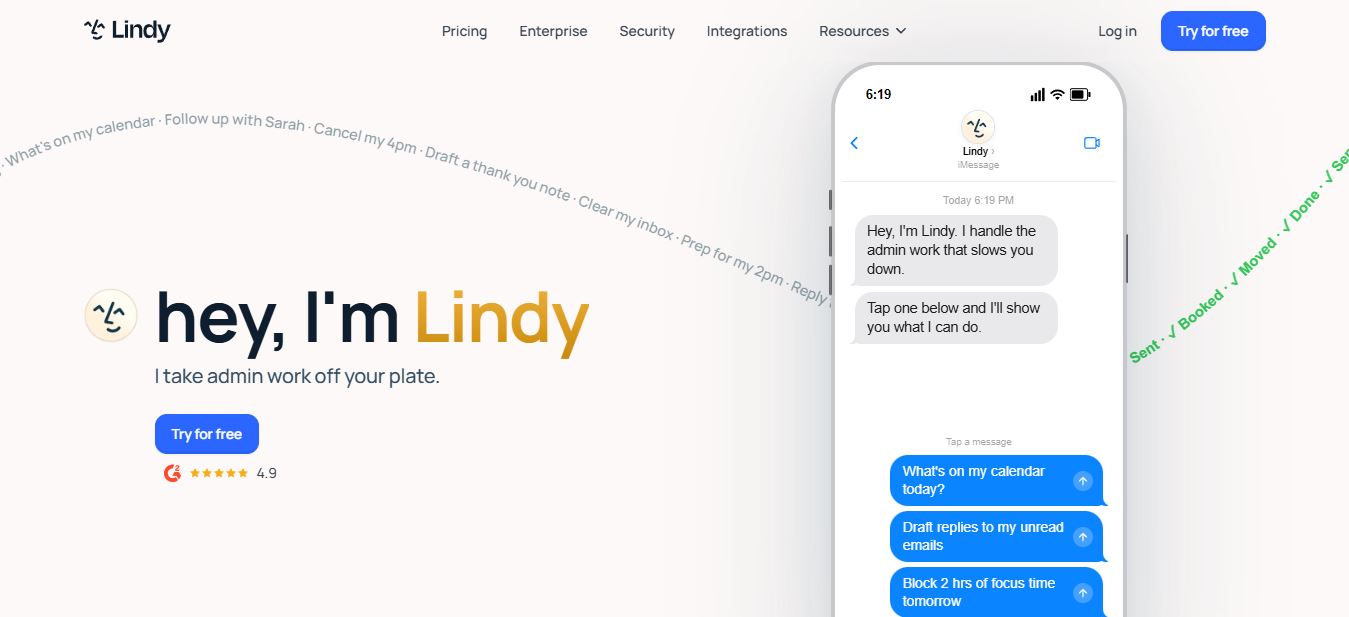
That’s a meaningful shift from how Lindy positioned itself a year ago, when it leaned harder into a generic “no-code AI agent builder” pitch aimed at freelancers and small teams stitching together custom automations. The current version is narrower and more opinionated: it wants to be the layer that sits between your inbox, your calendar, and your meetings, and it’s built for people who want that loop handled without learning a workflow-builder interface from scratch.
Lindy AI Pricing: What Changed (And Why It Matters)
This is the part most existing reviews still get wrong, because Lindy’s pricing has been rebuilt from the ground up. There’s no more free tier and no more pay-per-credit model. Every plan now runs on a flat monthly subscription with a 7-day free trial, and no credit card is required to start that trial.
| Plan | Price | Inboxes | Best For |
|---|---|---|---|
| Plus | $49.99/mo | Up to 2 | Individuals starting out |
| Pro | $99.99/mo | Up to 3 | Heavier meeting/email load, computer use |
| Max | $199.99/mo | Up to 5 | Founders/execs juggling multiple inboxes |
| Enterprise | Custom | Custom | SSO, SCIM, HIPAA, audit logs |

Lindy Plans by Monthly Price
Bars scaled relative to the Max plan price. Enterprise is custom-quoted and not shown.
Worth flagging clearly: this is a real jump from the roughly $29.99/month entry point Lindy used to advertise under its old credit system, and there’s no more “free tier, upgrade if you need it” safety net. The 7-day trial is genuinely the only way to test the waters before paying. If you only need occasional inbox cleanup, that price point might feel steep — but if follow-ups and meeting admin are eating hours weekly, it’s a different math problem entirely.
How Lindy AI Works, Step by Step
Before getting into my hands-on notes, here’s the actual onboarding flow, since a chunk of the friction I ran into happens before you ever build a workflow:
- Create an account and start the 7-day trial — no credit card required at this step.
- Connect an email provider (Google or Outlook) and, if you want text delegation, a phone number.
- Pick a template or start from a blank canvas. Templates like “Voice of the Customer” and “Chat with YouTube Videos” are genuinely useful starting points rather than filler.
- Define the trigger (new email, scheduled time, incoming meeting) and the actions Lindy should take.
- Test the workflow against a real scenario and review the run in the Tasks history panel before trusting it to run unattended.
On paper that’s five simple steps. In practice, step two is where most of the friction lives — Lindy wants Gmail, Google Drive, Google Docs, and Calendar access essentially all at once, before you’ve had a chance to see whether the product is even a fit for how you work. It’s not a dealbreaker, but it’s a heavier ask than most competing tools make on day one, and it’s worth going in expecting it rather than being surprised by it mid-signup.
How I Test the Platforms I Review
Every review on this site comes from hands-on testing, not a rewritten press release. For Lindy, that meant creating a real account, connecting my own Gmail, Google Calendar, and a Zoom-linked workflow, and exploring what the paid plan actually unlocks rather than reading a feature list. I took notes during setup and while running live workflows, then combined those notes with what I could verify from Lindy’s own documentation and pricing pages. This review reflects my personal experience and opinion — it isn’t professional, financial, legal, or technical advice, and if you need authoritative answers about a specific feature, billing question, or security requirement, contact Lindy directly.
My Real Test: Fixing the After-Meeting Scramble
Before touching Lindy, my routine looked like this: bounce between Gmail, Slack, and Zoom notes all day, then copy rough meeting notes into a doc and manually write follow-ups for anyone who’d asked a question. None of that was hard on its own. It was just slow, and it fell apart the moment I had back-to-back calls.
I deliberately kept the test simple: no complicated multi-agent chains on day one. I picked three workflows — meeting notes and transcription, follow-up emails, and a lightweight “don’t let anything fall through the cracks” task capture flow — and just watched how fast I could go from idea to something actually working.
Workflow 1: Meeting Notes That Didn’t Need a Rewrite
I connected the tools I use most for meetings and asked Lindy for a consistent output structure: summary, key decisions, action items, next steps. Setup here was genuinely quick — I wasn’t stuck fumbling through menus for an hour. Within minutes I had a working flow producing drafts I could send or save without heavy rewriting.
Action items came out usable almost every time — I’d still skim them, but they weren’t vague in the way some AI meeting summaries tend to be. Follow-ups improved noticeably when I told Lindy who the audience was (client versus internal teammate); tone and word choice adjusted accordingly. The one thing I noticed on longer calls was generation time — output took longer than I expected. Not broken, just not instant.
Where it stumbled: meetings with heavy jargon or several overlapping topics needed a more specific nudge, like “group action items by owner” or “separate decisions from open questions.” Without that extra instruction, Lindy sometimes blended decisions and next steps into the same bucket.
Workflow 2: Follow-Up Emails, Where Most AI Tools Miss the Tone
This is the test that separates genuinely useful tools from novelty ones. Lindy performed better than average once I gave it three things: the meeting notes or key points to include, the recipient’s role (customer, teammate, stakeholder), and the desired outcome — confirm a timeline, request approval, send a recap.
Drafts generated quickly enough that same-day follow-up was realistic, not aspirational. The real win wasn’t “it wrote an email” — plenty of tools do that. It’s that the draft arrived with a structure I could trust, which meant I wasn’t starting from a blank page every single time. I also liked the omni-channel angle: I could work through email and chat without feeling like I was juggling two separate systems, and I could reuse an earlier summary in a different channel without regenerating it from scratch.
Workflow 3: Lightweight Task Capture
The biggest limitation I ran into wasn’t Lindy’s intelligence — it was permissions and setup detail. If integrations aren’t connected cleanly, or calendar and email permissions aren’t scoped correctly, automations don’t behave the way you’d expect. I’d also caution against trying to automate everything on day one; the tool starts to feel overwhelming fast if you stack too many workflows before any single one is stable. Start with one, tighten the prompt and output format, then expand.
Bugs and UX Flaws I Actually Hit
Precise details matter more than vague complaints, so here’s exactly what tripped me up during testing:
- Lindy asks for a heavy stack of Google permissions — Gmail, Drive, Docs, Calendar — before you’ve even seen the product interface, across roughly five separate permission prompts.
- The “Select Trigger” screen dumps every integration option at once with no simplified starter mode (a “new email,” “form submission,” “user initiated” shortcut at the top would help a lot).
- Some steps, like adding a Google Search API step, ask for an API key with no inline explanation of where to get one or what it does.
- I explicitly told a workflow to save files to a subdirectory in Google Drive, and it ignored that instruction and saved to the root folder instead.
- New task initialization sometimes took a good 20 seconds, which is slow when you’re iterating and testing changes.
- The “Testing” side tab reloads every time you make a change, and the run history log lives non-intuitively under a separate “Tasks” tab at the top of the screen.
- Debugging loops inside a workflow is difficult to the point of feeling nonexistent — there’s no clean way to step through where a loop went wrong.
Pros and Cons
✅ What I Liked
- Genuinely strong at compiling notes and streamlining meeting/interview flows
- 100+ well-thought-out templates (Chat with YouTube Videos, Voice of the Customer, and more)
- Simplified conditional flows with clean state transitioning — no raw config diving required
- Proactively warns when a workflow is likely to get expensive, before you’re billed, not after
- Mostly “just works” for simpler flows — fewer silent failures than other tools I’ve tested
- Built-in web research performs well out of the box
- Tasks screen feels immediately familiar if you’ve used ChatGPT’s interface
❌ What Bugs Me
- Hyper-reliant on Google’s ecosystem for its best features
- Demands broad Google permissions before you’ve even explored the product
- “Select Trigger” screen is overwhelming with no simple starter options up top
- Weak inline explanations for technical steps like API key inputs
- Complex, nuts-and-bolts automation is genuinely better handled elsewhere
- Loop debugging is close to non-functional
- No free tier anymore — the 7-day trial is your only no-cost window
Lindy vs. the Alternatives
If you’re okay handing broad access to your Google or Microsoft stack over to Lindy, and don’t mind the permission gauntlet at signup, I didn’t run into any deal-breaking flaws. But it’s worth being clear about where Lindy sits relative to other tools people compare it to:
| Tool | Best For | Trade-off vs. Lindy |
|---|---|---|
| Lindy | Whole meeting-to-follow-up loop, natural-language delegation | — |
| n8n | Deterministic, precise, self-hostable automation | Steeper learning curve, more control |
| Gumloop | Complex, nuts-and-bolts AI workflow building | More flexible, less turnkey |
| Zapier / Make | App-to-app triggers without AI judgment calls | Less natural-language flexibility |
| ChatGPT / Claude | General reasoning, writing, coding, one-off questions | Not connected to your live inbox/calendar by default |
If you want to compare Lindy against a broader automation-builder alternative in more depth, I’ve also tested Make.com’s automation platform and how it handles similar cross-app workflows, and I’d also point you toward my breakdown of how Claude AI performs for technical and coding-heavy tasks if raw reasoning power matters more to you than app integrations.
Who Lindy AI Is Actually Built For
Based on my testing, Lindy makes the most sense for founders, consultants, salespeople, and anyone running a high volume of meetings who wants notes, action items, and follow-ups handled automatically. It’s also a solid fit if you like the idea of texting your assistant from your phone instead of opening yet another dashboard — that iMessage/SMS delegation is a real differentiator versus tools like Granola or Fyxer that stay locked inside a browser tab.
It’s a weaker fit if you want granular, code-level control over every branch of a workflow, or if your main need is pure transcription without any of the prep-and-follow-up work around it. For that narrower need, a dedicated notetaker or a deterministic automation builder will likely serve you better and cost less.
Security and Privacy: What to Know Before Connecting Your Inbox
Handing an AI assistant access to your inbox and calendar is a bigger trust decision than picking a new note-taking app, so it’s worth spelling out what Lindy actually claims here rather than assuming. Lindy says customer data is encrypted at rest and in transit, is never sold to third parties, and is not used to train underlying models. The company lists SOC 2 Type II, HIPAA, GDPR, and PIPEDA compliance, and Enterprise customers can request a signed Business Associate Agreement (BAA) along with SSO, SCIM provisioning, and audit logs for governance.
Practically, Lindy also builds in an approval step by default — it drafts emails and messages for you to review rather than firing them off unsupervised, which matters if you’re nervous about an AI agent replying to a client on your behalf without a human check first. That said, compliance claims and feature lists can change, so if you’re evaluating Lindy for a regulated industry or a team rollout, confirm current certification status directly with Lindy’s security team rather than relying solely on marketing copy — including mine.
My Verdict
I went into this test half-expecting to dislike Lindy. I’ve struggled in the past to get to the raw config level of “officey” workflow automation tools, which usually keeps me from reaching the precision I actually want. With Lindy, the overall functionality outweighs that friction. It won’t replace a dedicated automation platform for complex, branching logic — and it shouldn’t try to. What it does well is the narrower, genuinely common job: turning meetings and inbox chaos into structured notes, drafts, and follow-ups without asking you to learn a builder interface first.
At $49.99/month with no free tier, it’s a bigger commitment than it used to be. Use the 7-day trial deliberately: build one workflow, test it against a real week of meetings, and decide from there rather than guessing.
Frequently Asked Questions
Does Lindy AI have a free plan?
No. Lindy removed its free tier and now offers a 7-day free trial with full Plus-plan access instead. No credit card is required to start the trial.
How much does Lindy AI cost?
Plans start at $49.99/month for Plus, $99.99/month for Pro, and $199.99/month for Max, with custom Enterprise pricing for teams needing SSO, SCIM, HIPAA compliance, and audit logs.
Is Lindy AI good for beginners?
For simple, single-purpose workflows, yes — setup for a first agent took me under 15 minutes. Once you start branching into multiple conditional flows or chaining agents together, the interface gets noticeably harder to manage.
Does Lindy AI work without Google apps?
Lindy also connects with Outlook and Microsoft Teams, but in practice its strongest, best-documented workflows lean heavily on the Google ecosystem — Gmail, Calendar, Drive, and Docs.
Is Lindy AI safe for sensitive business data?
Lindy states that customer data is encrypted, never sold, and not used to train models, and lists SOC 2 Type II, HIPAA, GDPR, and PIPEDA compliance, with a signed BAA available on Enterprise plans. For anything regulated, verify current certifications directly with Lindy before rolling it out.
Related Reviews You Might Find Useful
- Make.com Review — a deeper look at deterministic automation building
- Intercom Review — AI-powered customer support automation
- Is Claude AI Good for Coding? Full Developer Review
- 10 ChatGPT Alternatives That Do Some Things Better
- Mistral AI Review — features, pricing, and how it works
- WisprFlow Review — voice-first AI productivity tool
- Guidde Review — AI documentation and how-to workflows
- Aprimo Review — AI-powered marketing work management
- ContentStudio Review — AI social media management
- Best Talent Management Platforms for recruiting coordination


