
I Tested 11 SEO Toolbar Extensions for Chrome & Firefox — Here’s What Actually Earned a Spot in My Browser
SEOquake, Ahrefs, MozBar, Keywords Everywhere and seven more — reviewed after two weeks of real audits, keyword pulls, and broken-link checks, not marketing copy.
By Oyekale Olawale · Updated August 2026 · 13 min read
Quick Answer
If you only install one, make it Detailed SEO Extension — it’s free and gives you a clean read of any page’s title, meta, headings, and schema in one click. If you already pay for Ahrefs (plans now start at $29/month on the new Starter tier), keep its toolbar — without a subscription it’s mostly a locked shell. For keyword ideas while you search, pick one of Keyword Surfer, Keywords Everywhere, or Ubersuggest — they overlap enough that running all three just clutters your browser. Keep Redirect Path and Check My Links installed for technical work even if you only open them once a month.
I’ve tested quite a few SEO browser extensions over the years, and one thing I’ve learned the hard way is that having more of them installed doesn’t make you better at SEO. Usually it’s the opposite. You add one for keyword research, another for backlinks, one for redirects, one for broken links, and before long your toolbar is a wall of tiny icons and every Google search looks like a cockpit.
So for this round I went through 11 of the extensions people actually ask me about, with one question in mind: which ones are worth the permission request, and which ones are just nice icons? I logged how each one performed on live audits, competitive research, and the boring technical checks nobody enjoys but every site needs — the same kind of groundwork I go through when I’m updating our running list of the best all-in-one SEO platforms.
How I Tested and Ranked These 11 Extensions
Before the individual write-ups, here’s the methodology, because “I liked it” isn’t a review. Each extension went through the same four checks over two weeks of daily use:
- Data accuracy — did the numbers roughly match Google Search Console or the vendor’s own dashboard?
- Browser permissions — does it need “read and change all your data on all websites,” and is that justified?
- Resource load — did it slow down page loads or fight with other extensions?
- Practical utility — does it solve a real problem, or is it a vanity-metric badge?
A quick note on why this list matters more than it used to: with AI Overviews reshaping how much of the SERP you can even see, the manual, in-browser checks these extensions do — title tags, canonical issues, redirect chains — are exactly the kind of technical hygiene that keeps a page eligible to be pulled into an AI answer in the first place. Sloppy on-page signals hurt you in both the old ranking system and the new retrieval-and-citation layer that AI search runs on.
The 11 Extensions at a Glance
| Extension | Best For | Price | Chrome / Firefox |
|---|---|---|---|
| Detailed SEO Extension | Quick on-page checks | Free | Both |
| Ahrefs SEO Toolbar | Backlink & SERP research | Free tool, needs paid Ahrefs ($29+/mo) | Both |
| SEOquake | Competitive SERP snapshots | Free | Both |
| MozBar | Domain/Page Authority checks | Free tool, Pro data needs Moz ($49+/mo) | Both |
| Keywords Everywhere | Multi-platform keyword data | From $84/yr (credits) | Both |
| Keyword Surfer | Free content-brief data | Free | Chrome only |
| Ubersuggest Extension | Fast competitor snooping | Free, paid dashboard optional | Chrome-first |
| Redirect Path | Redirect & status-code audits | Free | Chrome (Firefox via SEO alternatives) |
| Check My Links | Broken-link scans on a page | Free | Chrome |
| Sprout SEO Extension | All-in-one page audits | Free | Chrome |
| Plerdy SEO & UX | SEO + UX/CRO overlap | Free tier, paid from ~$21/mo | Both |
What Each Paid Tier Actually Costs
The toolbars themselves are free installs. What you’re really paying for is the subscription behind them. Here’s the entry-level monthly cost for the accounts that unlock full toolbar data, so you’re not surprised later:
Bars scaled to Ahrefs Lite ($129/mo). Ahrefs added a $29/month Starter tier in January 2026, cutting its old entry price by roughly 70%. Keywords Everywhere is annual-only; the $84/year Bronze plan works out to about $7/month. Detailed SEO, SEOquake, Keyword Surfer, Redirect Path, Check My Links, and Sprout SEO are fully free and not shown.
The On-Page Specialist
1. Detailed SEO Extension
Detailed is the opposite of Ahrefs and Moz, and that’s exactly why it’s the one I’d tell a beginner to install first. It’s lightweight and focused entirely on what’s already sitting on the page.
One click gives you the title, meta description, H1–H3 hierarchy, canonical URL, word count, robots directives, and schema markup, plus a live SERP preview showing how your title and description will actually truncate on a results page. When I want to know whether a writer’s draft has the right heading structure or whether a competitor is using FAQ schema, this is what I open — not a full SEO dashboard.
✅ Pros
- Loads almost instantly, minimal permissions
- Built-in SERP snippet preview
- Completely free, no account required
❌ Cons
- No backlink or ranking data at all
- Image alt-text audit requires exporting a spreadsheet
The Suite Integrators
2. Ahrefs SEO Toolbar
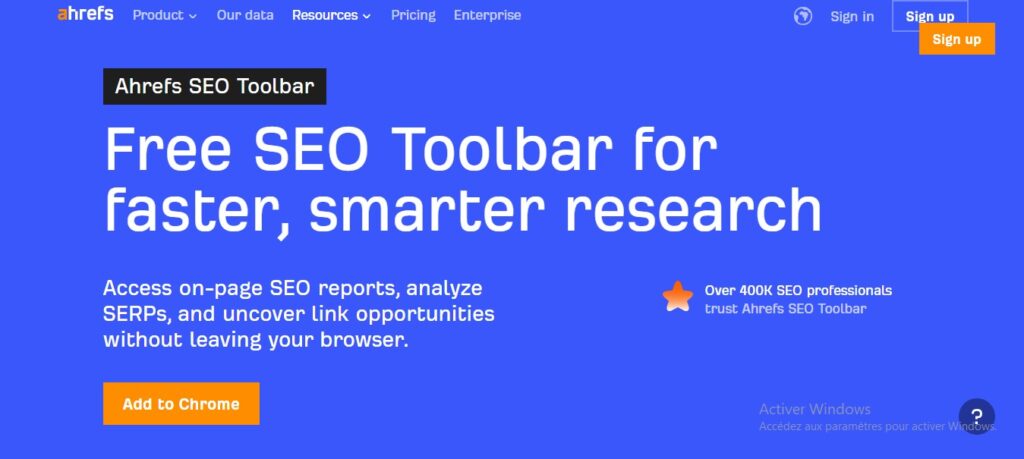
Full disclosure: I’m an Ahrefs subscriber, so I’m testing this as it’s meant to be used. Once you’re logged into an account, the toolbar shows Domain Rating (DR), URL Rating (UR), and referring-domain counts for any page you land on, plus a SERP overlay with DR and estimated traffic for every ranking result.
The catch hasn’t changed: without a paid Ahrefs account, the toolbar is essentially a locked shell. What has changed is the price of entry. Ahrefs quietly rolled out a $29/month Starter plan in January 2026 — a roughly 70% cut from the old $129/month Lite floor — specifically to lower the barrier for solo bloggers and smaller sites. If you’ve avoided Ahrefs because of price, it’s worth another look before you write it off.
✅ Pros
- Turns any page you visit into a link-prospect list
- SERP overlay with DR and traffic estimates
- New $29/mo Starter tier lowers the entry cost
❌ Cons
- Useless without an active subscription
- Requests broad site-data permissions
3. MozBar

MozBar is the extension that popularized putting authority metrics directly in your search results, and it’s still doing that job. It shows Domain Authority (DA) and Page Authority (PA) on any page or SERP, plus link-attribute highlighting for follow/nofollow and quick on-page inspection.
I need to correct something I’ve said about this tool in the past: I’d previously written off MozBar’s Firefox support as fading out. That’s no longer accurate. Moz shipped a rebuilt Version 5 of the Firefox add-on in mid-2026 with faster performance and 48-hour data caching, and Moz’s own documentation confirms both browsers now get the same feature set. If you skipped MozBar on Firefox before, it’s worth reinstalling.
My biggest standing criticism has nothing to do with the extension itself: DA is not a Google ranking factor. It’s Moz’s own estimate of ranking strength, useful for quick comparisons, useless as an optimization target. Free MozBar access gets you the headline numbers; full Moz Pro data starts at $49/month on the Starter plan.
✅ Pros
- DA/PA are still the most quoted metrics in outreach emails
- Rebuilt V5 Firefox add-on with faster performance (2026)
- Free tier covers basic spot checks
❌ Cons
- DA is a proprietary estimate, not a Google signal
- Full Moz Pro access needed for depth, from $49/mo
4. SEOquake

SEOquake, owned by Semrush, has been around long enough that it’s practically furniture in the SEO world — and it earns that longevity. It overlays keyword difficulty, indexed-page counts, and internal/external link totals right on the Google results page, and it can export a full SERP report for the top results to a CSV for offline analysis.
I lean on it most for competitive research: glance at a SERP and get a rough read on how hard a term will be to rank for without opening a separate platform. The honest downside is that it can feel like a lot — if all you want is a title tag check, SEOquake is overkill.
✅ Pros
- Free keyword difficulty score right on the SERP
- Exportable SERP reports (CSV)
- Backed by Semrush’s database
❌ Cons
- Cluttered for beginners — a lot of numbers at once
- Overkill for a simple on-page glance
The Keyword Research Crew
5. Keywords Everywhere

I’ve used Keywords Everywhere for years, and it still makes keyword research feel less tedious than it should be. Instead of opening a keyword platform every time I want to check a term, it drops search volume, CPC, and competition data directly into Google, YouTube, Amazon, and more than a dozen other sites — including ChatGPT and Pinterest now.
Pricing runs on an annual credit system: Bronze is $84/year for 100,000 credits, Silver $168/year for 400,000, Gold $480/year for 2 million, and Platinum $1,440/year for 8 million — confirmed directly on the vendor’s current pricing page. One Google search with related keywords and “People Also Search For” data showing can burn 10 to 50 credits at once, so casual users stretch Bronze a long way, but heavy researchers can chew through it faster than expected.
I treat the volume numbers as directional, not gospel. I’ve never seen two keyword tools agree exactly, and I wouldn’t build a content calendar around one tool’s exact monthly-search figure.
✅ Pros
- Works across 15+ sites, not just Google
- Bronze plan ($84/yr) is affordable for casual use
- Bonus tools: Instagram hashtag and YouTube summary generators
❌ Cons
- Annual billing only — no monthly option
- Credit system can create “wasting credits” anxiety
6. Keyword Surfer

If you’re on a budget, this is your best friend. Type a query into Google and Keyword Surfer shows the monthly search volume right in the bar, with dozens of related keywords listed alongside the results — completely free, no account wall.
The feature I actually build content briefs around is the estimated word count and organic traffic shown for top-ranking pages. If the top three results for a term all sit around 2,500 words, that’s an immediate, unambiguous signal for how comprehensive my article needs to be.
✅ Pros
- 100% free, no credits or account needed
- Word-count targets for top-ranking pages
- Keyword collections downloadable as CSV
❌ Cons
- No keyword difficulty score
- Chrome only, no Firefox build
7. Ubersuggest Chrome Extension

Neil Patel’s extension sits between a simple keyword tool and a lite competitive-research dashboard. Click the icon on any domain and you get a quick read on its estimated traffic, top pages, and keywords, plus effective “People Also Search For” scraping for topic ideas.
It’s my go-to for landing on a competitor’s blog post and instantly wanting to know roughly how much traffic they’re pulling. For deep keyword lists you’ll still need the full Ubersuggest dashboard, which runs as a separate subscription outside the free extension.
✅ Pros
- Instant traffic snapshot for any domain
- Free to install and use for quick lookups
❌ Cons
- Deep keyword lists require the paid dashboard
- Traffic estimates vary noticeably from Ahrefs/Semrush
One thing worth saying plainly: don’t install all three of these keyword extensions at once. Keywords Everywhere, Keyword Surfer, and Ubersuggest all do the same core job — surfacing volume and related terms while you search. Pick the one that matches your budget (free, low-cost credits, or full dashboard) and skip the other two. If you’re weighing a dedicated content-optimization platform instead of a browser extension, I compared several in my Rankpill alternatives roundup and again in my breakdown of Soro SEO vs. Rankpill.
The Technical Troubleshooters
8. Redirect Path

This is the specialist on the list, and I mean that as a compliment. When you’re dealing with redirects, you don’t need 50 metrics — you need to know exactly what happened when the browser requested that URL. Click a link and a small icon flags whether you hit a clean 200, a 301/302 redirect, or a 404/500 error, and it reveals the full chain if a URL bounces through multiple hops.
You’ll barely touch it for ordinary content writing. But during a site migration, URL restructure, or when a page mysteriously stops ranking, it’s the first thing I open. It’s a screwdriver — you don’t carry it around all day, but you’re glad it’s in the drawer.
✅ Pros
- Exposes full redirect chains, not just the final status
- Click-through to raw HTTP headers
- Free and fast to install
❌ Cons
- Displays a limited number of chained redirects at once
- Not something a content writer needs day to day
9. Check My Links

Publishing a page with dead outbound links is a bad look and a worse user experience. Click the extension and it scans the current page, color-coding every link: green for a valid 200, red for a broken 404.
This earns its keep on content audits. Any site that’s been running for a few years accumulates links to pages that moved, got deleted, or vanished entirely. Checking those manually is miserable. This makes it fast, and the one-click “copy all broken links” feature means you can hand a clean list to whoever’s fixing them in minutes instead of hours.
✅ Pros
- One-click copy of all broken links found
- Great for finding 404 opportunities on resource pages
- Free, no account needed
❌ Cons
- Only scans the single page you’re on, not the full site
- No scheduled or bulk-crawl option
The All-in-One Powerhouses
10. Sprout SEO Extension

Sprout SEO was the surprise of this round. It’s not old-guard like Moz or SEOquake, but it’s built with an audit-first mindset. A right-click context menu gives you instant access to title tags, meta descriptions, canonical tags, and robots directives, plus links out to over a dozen external tools.
The feature that impressed me most is that it pulls real Core Web Vitals data from the Chrome User Experience Report (CrUX) rather than running a local Lighthouse simulation — meaning you’re seeing the actual field LCP, INP, and CLS numbers Google uses for ranking, not a lab estimate. It even overlays CWV scores for every result on a SERP, which is genuinely useful for competitive technical audits.
✅ Pros
- Real-world CrUX Core Web Vitals data, not just lab estimates
- JavaScript toggle and rendered-source viewer
- Free, with structured-data validation built in
❌ Cons
- Packed UI has a learning curve for beginners
- Younger tool, smaller community than Ahrefs or Moz
11. Plerdy SEO & UX Analysis
Plerdy is the odd one out, and deliberately so. It’s built from a broader SEO-plus-conversion-rate perspective, which matters because ranking well and converting well are two different problems. Someone can sit at position one and still run a site nobody finishes reading.
The extension gives you an on-page SEO score with prioritized fixes, and if you connect Plerdy’s full script to your site, it layers in heatmap and click-tracking data so you can see whether the traffic you’re ranking for is actually engaging. There’s a genuinely usable free tier (roughly 2,000 pageviews/day), with paid plans starting around $21/month for more volume and features. I wouldn’t install this just to check a title tag — but for landing pages, ecommerce, or CRO work, it earns a spot Detailed SEO can’t fill.
✅ Pros
- Combines on-page SEO score with UX heatmap data
- Usable free tier (~2,000 pageviews/day)
- Paid plans start around $21/month
❌ Cons
- Heatmap value depends on installing Plerdy’s site script
- More than most people need for a quick SEO glance
Building Your Own Stack, by Role
You don’t need all 11 running at once — that’s how you end up with a browser that stutters and extensions that fight over the same click. Here’s how I’d actually build a stack depending on what you do most:
- Technical SEO / auditor: Sprout SEO for CWV and deep audits, Redirect Path for debugging, Check My Links for QA.
- Content marketer / blogger: Keyword Surfer for free content-brief data, Detailed SEO Extension for competitor structure checks.
- Link builder / competitive analyst: Ahrefs Toolbar or MozBar (whichever you already subscribe to), plus SEOquake for quick SERP difficulty reads.
- Marketer focused on conversions: Plerdy, since SEO traffic that doesn’t convert isn’t doing its job.
If your real bottleneck isn’t the browser toolbar but the content production pipeline itself, that’s a different problem — I’ve written separately about whether AI-assisted SEO platforms like Soro SEO actually hold up and what to check with Search Console-adjacent tools like PowerSearchConsole before you add another subscription on top of your toolbar stack.
FAQ
Are SEO browser extensions safe to install?
Most reputable ones are, but check the permission request. Anything reading page content to show you metrics (Ahrefs, Moz, SEOquake) will ask for “read and change data on all websites you visit” — that’s expected for the feature, not automatically a red flag. Be more cautious of extensions with few reviews, no recent updates, or permissions that go beyond what the stated feature needs.
Do I need an Ahrefs or Moz subscription for their toolbars to work?
For full data, yes. Both toolbars install and run for free, but the backlink and authority metrics they display are pulled from your paid account. Without a subscription you’ll see a locked or stripped-down interface. Ahrefs now starts at $29/month (Starter); Moz Pro starts at $49/month (Starter).
Is Domain Authority a Google ranking factor?
No. Domain Authority is a metric Moz created to estimate a site’s overall ranking strength based on link profile. Google doesn’t use it, and it can move differently than your actual rankings. Treat it as a comparison tool, not an optimization target.
Which extension should a complete beginner install first?
Detailed SEO Extension. It’s free, has almost no learning curve, and shows you exactly what search engines see on a page without any subscription or setup.
Can I run several of these at the same time?
Technically yes, but I’d avoid stacking more than 4–5 active at once. Overlapping keyword tools especially (Keywords Everywhere, Keyword Surfer, Ubersuggest) will slow page loads and clutter every Google search with redundant data.
Do these extensions work on Firefox as well as Chrome?
Most do. Ahrefs, MozBar, SEOquake, and Keywords Everywhere all ship Firefox versions, and MozBar’s rebuilt V5 add-on brought Firefox to full feature parity with Chrome in 2026. Keyword Surfer and Check My Links remain Chrome-only as of this writing.
Closing Word
After two weeks living with all 11 of these open at once and then paring back, there’s no single winner everyone should install. What I keep coming back to is this: browser extensions are shortcuts, not a substitute for knowing what the numbers mean. I’ve watched two reputable tools return completely different figures for the same keyword — that doesn’t mean either is broken, it means they’re pulling from different datasets and methodologies.
My own permanent shortlist is short on purpose: Detailed SEO Extension for quick checks, Ahrefs Toolbar because I already pay for Ahrefs, one keyword extension (not three), and Redirect Path plus Check My Links for whenever something technical breaks. Everything else on this list is situational — genuinely useful when the job calls for it, and safely uninstalled the rest of the time.
The best SEO browser setup isn’t the one with the most icons. It’s the one where you can open a page, understand what’s actually happening, and get back to the work that moves rankings — and increasingly, AI citations — instead of admiring a dashboard.