

Magic Animator Review 2026: I Tested the Figma AI Animator on a Real Landing Page Build
A hands-on look at Lottielab’s one-click animation plugin for Figma — what it nailed, where the beta still stumbles, and whether it belongs in your workflow.
By Oyekale Olawale
Quick Answer
Magic Animator is a free (still-beta) AI animation plugin for Figma, built by the team behind Lottielab. Point it at a static frame, click “Generate animations,” and it produces motion in seconds — exportable as MP4, GIF, or Lottie. I tested it animating a landing-page hero card and had a usable draft in under 10 seconds, with editable keyframes to fine-tune from there. It’s genuinely fast for marketing visuals, logos, and UI micro-interactions, but it’s not built for frame-perfect, multi-layer choreography, and as a beta product it still throws the occasional export hiccup. Pricing: 100% free right now — no paid tiers have been published yet.
What Is Magic Animator?
Magic Animator is a cloud-based animation plugin, “made by Lottielab,” that lives inside Figma. Instead of building keyframes by hand, you select a frame, hit “Generate animations,” and the AI produces a set of motion variants pulled from your layout, hierarchy, and shapes. From there you can accept a variant, tweak the timing on editable keyframes, and export straight to MP4, GIF, or Lottie.
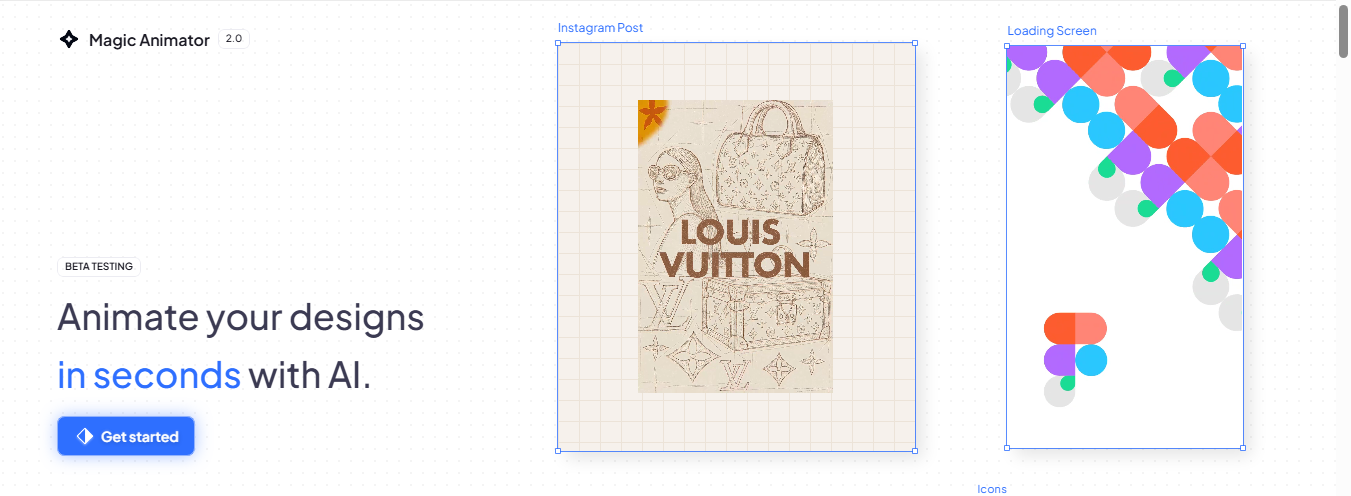
The tool has been in public beta since late 2025 — the site still shows a “2.0 BETA TESTING” badge as of this update — and its “Get started” button drops you straight into the Figma Community plugin page. Its marketing copy also mentions Canva and Adobe Express support, though my hands-on testing was entirely inside Figma, which is where the plugin currently feels most complete.
If you’ve read my breakdown of free AI video tool alternatives, you know I care about tools that actually save time rather than adding a new learning curve. Magic Animator sits in an interesting spot: it’s not a video generator, and it’s not a full animation suite like After Effects — it’s a motion layer bolted directly onto your design tool.
Magic Animator at a Glance
| Attribute | Details |
|---|---|
| Platform | Figma plugin (primary); Canva and Adobe Express listed on site |
| Developer | Lottielab team |
| Core action | One-click AI animation generation from a selected frame |
| Editing | Editable keyframes, adjustable timing and motion feel |
| Export formats | MP4, GIF, Lottie (code-ready) |
| AI assistant | Chat-based, suggests motion based on canvas layout/hierarchy |
| Status | Public beta (2.0) |
| Price | Free — no disclosed paid tiers as of this review |
How I Test Tools Like This
I don’t run a tool once and call it a review. For Magic Animator, I picked a real deliverable — a hero-style product card for a landing page — instead of a throwaway demo shape. I wanted to know whether the tool holds up under an actual production task: could I get from static design to something publishable, and how much manual cleanup would it cost me? I ran the same layout through two separate tests, timed the workflow, and noted every glitch, not just the highlight-reel moments.
My Hands-On Test: Animating a Real Hero Card
I tested Magic Animator in a desktop browser (Chrome), inside Figma. I wasn’t chasing a “perfect” demo — I picked a real-world task: animating a hero-style product card for a landing page, the kind of subtle scale-in, gentle slide, and quick fade that feels modern without being distracting.
What surprised me most was how the workflow felt. It was fast enough that I actually used it like part of my design process instead of a separate animation project. I selected the frame, ran the “Generate animations” action, and within seconds had a moving version of the element — no long timeline wrestling, no learning a whole new animation system first.
On control: yes, you can tweak the keyframes and adjust the motion, and the controls didn’t feel like a fight. I could nudge timing and movement to match the vibe I wanted — more “snappy” versus more “smooth” — and iteration was quick. That matters when you’re trying to ship something and you don’t have hours to burn on motion polish.
The AI assistant genuinely earned its keep. In my tests, its suggestions seemed to be based on what was actually on the canvas — layout shapes, visual hierarchy — so the results came out relevant rather than generic filler motion. I could take the AI’s first pass and adjust from there, which is the sweet spot for me: a real starting point, not a blank timeline.
Exporting was practical too. I pulled outputs in MP4, GIF, and Lottie — MP4 for video placements, GIF for quick social posts, Lottie for lightweight motion on the web or in an app. Since it’s still in beta, though, I hit a couple of glitches, mostly small hiccups during generation and export. Nothing that permanently broke my workflow, but it did cost me time whenever I had to rerun a step.
The two tests I ran
Test 1 — Product card: An icon, title text, and background shape. I generated a default animation, then adjusted timing so the card “arrived” faster — more of a punch than a float.
Test 2 — CTA button + badge: I used the AI assistant to find a motion style suited to a landing page — a quick attention grab, not something distracting.
In both cases, the AI got me to a usable first draft quickly. Then I used the editable keyframes to adjust what actually mattered — timing, movement amount, how the elements settle. That’s the difference between “cool demo motion” and something you’d genuinely publish.
One thing worth flagging: this tool is built to get you moving fast, not to hand you a giant pro-level animation suite. If you want frame-perfect choreography across dozens of layers, you’ll feel the ceiling. But for landing pages, marketing visuals, and UI micro-interactions, it’s a real time-saver — and I’ve tested enough tools in this space (see my rundown of AI mockup generators) to know that “fast and usable” beats “powerful but slow” for most day-to-day work.
How Much Time Does It Actually Save?
Here’s a rough breakdown based on my own sessions, comparing the time it took to get a publishable hero-card animation with Magic Animator versus building the same motion by hand in a traditional keyframe editor.
Estimates based on my own test sessions animating a comparable hero-card layout. Actual time varies by design complexity and how much manual polish you want.
Key Features That Stood Out
One-click generation inside Figma. You start from your existing design and trigger animation directly in your workflow — no rebuilding the layout in a separate tool.
Editable keyframes. After the AI generates motion, you refine it. What I used most was adjusting timing and the overall feel of the movement to match the pacing of the rest of the page.
Context-aware AI assistant. Instead of staring at a blank timeline, the chat-based assistant suggested styles that made sense for the elements actually on the canvas.
Multi-format export. MP4 and GIF for quick previews and social posts, Lottie for lightweight, code-ready motion in apps and on the web.
Design-stack integration. Positioned to work across Figma, Canva, and Adobe Express, so you’re not exporting everything to a separate pipeline just to animate it.
Pros and Cons
✅ What I liked
✔ Fast results — usable animation in seconds, room to iterate more than once
✔ AI assistant gives you a real starting direction, not random guesses
✔ Keyframes are editable — you’re not stuck with the first output
✔ Export formats fit real channels: MP4, GIF, Lottie
✔ Great for marketing motion and UI micro-interactions specifically
❌ What may annoy you
✘ Beta instability — I had to rerun a step during generation/export a couple of times
✘ Not built for ultra-complex, many-layer animation behaviors
✘ Smoothest flow is still around Figma specifically
✘ No published paid tier yet — you can’t plan long-term costs
Pricing Plans (What I Actually Saw)
Magic Animator is currently 100% free while it’s in beta. There’s no card required, no locked feature wall, and no visible upgrade prompt during normal use. Third-party SaaS directories tracking the tool independently confirm the same picture: a free-forever plan with paid tiers, seat pricing, and export limits still undisclosed. If you’re planning to build it into a regular workflow, I’d check the official pricing page before committing to anything beyond casual use, since beta pricing structures can shift fast once a tool exits testing.
How It Compares to Alternatives
Magic Animator isn’t the only way to add motion to a static design. Here’s how it stacks up against the tools people usually compare it to:
| Tool | Best for | Learning curve | Price |
|---|---|---|---|
| Magic Animator | Quick Figma motion from static designs | Very low | Free (beta) |
| After Effects | Bespoke, frame-perfect motion design | High | Subscription |
| Rive | Interactive, state-driven app animation | Medium–high | Free tier + paid |
| LottieFiles | Browsing/editing existing Lottie assets | Low–medium | Free tier + paid |
If your workflow already involves Figma assets and you want motion without opening a second application, Magic Animator has a clear edge. If you need broadcast-grade or heavily customized animation, tools like After Effects or Rive remain the better fit — and I’ve tested plenty of tools that try to shortcut that gap, including my look at RunwayML for AI-generated video and Kling AI’s video generation model, both of which solve a different problem than static-design-to-motion.
Who Is Magic Animator For?
Based on my testing, this tool fits best for:
Product and UX designers who want to show micro-interactions (button hovers, icon transitions) to stakeholders without a separate animation project.
Marketers and social managers designing campaign graphics who need a GIF or MP4 out the door fast — the kind of workflow I’ve also covered in my breakdown of AI landing page builders.
Small business owners and solopreneurs who want an animated logo or hero visual without hiring a motion designer — worth pairing with a look at AI logo generators if you’re building the brand from scratch.
Design-tool power users already comfortable in Figma — if you’re weighing which design platform to standardize on, my Framer review covers a comparable design-and-ship workflow.
It’s a weaker fit if you’re building 3D animation pipelines (see my rundown of Meshy AI for 3D model generation instead) or need frame-by-frame control across dozens of layers for broadcast work.
FAQ
Is Magic Animator free?
Yes. It’s currently free during its beta period, with no publicly disclosed paid tiers yet.
What design tools does it work with?
It’s built primarily as a Figma plugin. The site also lists Canva and Adobe Express integration, though my hands-on testing was done entirely inside Figma.
What formats can I export?
MP4 for video placements, GIF for social posts, and Lottie for lightweight, code-ready motion on the web or in apps.
Can I customize the AI-generated animation?
Yes. Once the AI generates a first pass, you can edit keyframes and adjust timing to change how snappy or smooth the motion feels.
Is it stable enough for client work?
Mostly, but leave buffer time. As a beta tool, I ran into occasional generation and export glitches that required rerunning a step — nothing workflow-breaking, but worth planning around on a tight deadline.
Bottom Line
Magic Animator does what it promises: it removes real friction between designing and animating. In my testing, that friction reduction held up on an actual production task, not just a demo shape — I got to publishable motion faster than I normally would, and the editable keyframes meant I wasn’t locked into the AI’s first attempt.
Just remember it’s still beta. If you’re shipping something tomorrow, build in a little buffer for reruns or export hiccups. But if you’ve got a landing page, a social campaign, or UI motion you want to refresh without turning it into a full animation project, it’s worth the five minutes it takes to try.


