Updated July 2026 · Hands-On Test
Meshy AI Review: I Turned Photos Into 3D-Printed Objects — Here’s What Actually Happened
I ran Meshy’s Image-to-3D pipeline through real prints on my own printer, tested the credit system, and found the exact spots where the AI still trips over itself.
By Oyekale Olawale · 13 min read
⚡ Quick Answer
Yes — Meshy AI can generate genuinely 3D-printable models from photos, and in my testing the meshes came out watertight and slicer-ready far more often than I expected. It won’t give you a museum-accurate scan of your object (it’s a generative reinterpretation, not photogrammetry), but for figurines, keychains, toys, and gift-style prints it’s one of the fastest photo-to-STL workflows I’ve tested. Plans start at $0/month (100 credits), with Pro at $20/month for 1,000 credits and Studio at $60/month. See the full Meshy AI pricing breakdown for credit math by task.
What Is Meshy AI?
Meshy is a generative AI platform that converts text prompts, sketches, or reference photos into ready-to-use 3D models. It’s built primarily for game developers and 3D artists who need assets fast, but over the last year the platform has leaned harder into 3D printing specifically — adding printability checks, auto-repair for non-manifold meshes, multi-color texture mapping, and direct export to slicers like Bambu Studio, OrcaSlicer, and Creality Print. That printing-specific pivot is the reason I decided this review needed a full retest — I covered the platform’s game-asset side in my original Meshy AI review, but this pass is entirely focused on whether it holds up as a print pipeline.
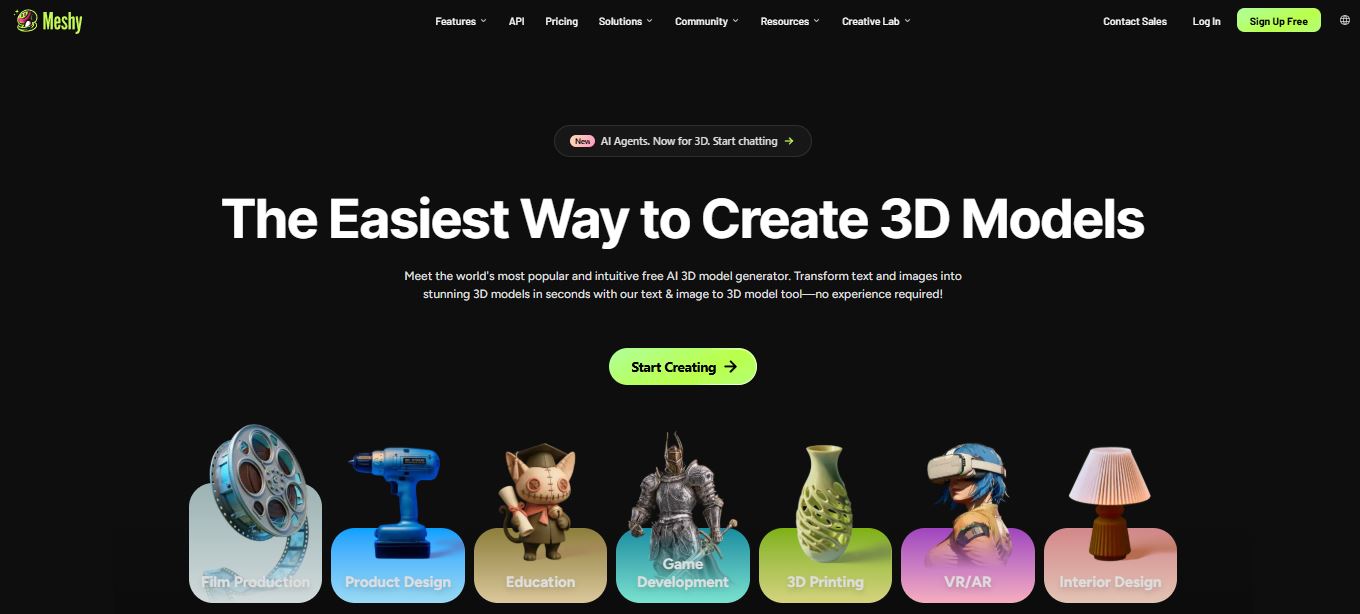
The core workflow breaks into four stages: upload a reference (image, sketch, or text description), let the AI generate several candidate meshes, refine the texture or color, then export or send the file straight to your slicer. Meshy also runs a “Full-Color 3D Print & Ship” option for people without a printer at home, which routes the order to a regional print partner. I didn’t need it this time, since I own a Bambu Lab printer, but I did check the flow and it’s a genuinely useful fallback if you just want the physical object without owning hardware.
If you’ve read my breakdown of other AI 3D mockup generators — including a closer look at ProVisual’s 3D mockup tools — you’ll recognize the general shape of this workflow. Meshy is the only one in that group actively marketing itself toward the hobbyist 3D-printing crowd rather than just game-asset creators.
How I Tested Meshy AI
I don’t review AI tools from a demo video. For this piece I ran three separate photo-to-3D tests over eleven days on a Pro-tier account, tracked exact credit consumption per generation, exported every mesh into PreForm and OrcaSlicer to check for non-manifold geometry, and physically printed two of the results on my own FDM printer. I also logged every UI hiccup, failed generation, and confusing menu I hit along the way, because that’s usually where a tool’s real limitations show up — not in the marketing copy.
Test 1: A Single Photo of a Ceramic Garden Gnome
I started simple: one phone photo of a garden gnome statue, uploaded through Image to 3D. Each reference image costs 20 credits on the standard setting, so this first pass cost me 20 credits for four candidate meshes. Within about ninety seconds I had four distinct interpretations to choose from — all recognizably “gnome-shaped,” but with real variation in the beard texture, hat proportions, and base thickness. None was a perfect match to my source photo (the AI clearly leans on its own trained sense of “what a gnome looks like” rather than tracing my image pixel-for-pixel), but two of the four were close enough that I’d happily print either.

The mesh I picked exported cleanly to OBJ with roughly 180,000 faces — plenty of resolution for a desktop print. I toggled on “Image Enhancement” before generating a second time, and the difference was noticeable: without it, the gnome’s arm merged awkwardly into his torso; with it enabled, the geometry separated cleanly. That single toggle is easy to miss in the upload window, and I think a lot of first-time users skip it and walk away unimpressed with the results.
Test 2: Multi-Image Upload on a Coffee Mug
Meshy allows up to ten reference images per generation, so I photographed a mug from six angles to see whether more references actually improved accuracy — a claim the platform’s chat assistant makes when you ask it directly. At 20 credits per image, six references cost 120 credits for one generation batch. The result was mixed: the overall mug silhouette and handle placement were noticeably more accurate than the single-photo gnome test, but the AI still treated my six images more like six separate style references than six angles of one object. I never got a model that stitched all six views into a single unified capture the way true photogrammetry software would.

Practical takeaway from this test: don’t expect Meshy to replace a proper 3D scan. If you need dimensional accuracy for a functional part, this isn’t your tool — you’ll want CAD software or a real scanner. But if “close enough and interesting” is the bar, six angles genuinely do produce a rounder, more three-dimensional-feeling result than one flat photo.
Test 3: Texturing, Multi-Color Export, and the Creative Lab
The third test focused on Meshy’s Texture tool and the multi-color print export, since that’s the feature set the platform has pushed hardest this year. I uploaded a flat cartoon sketch of a fox and let the AI both model and texture it in one pass. Inside the texturing window you can either prompt the AI to recolor sections (“make the tail orange, the belly white”) or grab a paintbrush and do it by hand. I used both — prompting got me 80% of the way there, and manual touch-up fixed a patch on the ear where the AI had bled orange into white.

From there, the Multi-Color Printing export let me set color count (1–16), detail level (I used 6, the max), and match each mapped color to a standard PLA swatch. Exporting straight into OrcaSlicer preserved the color boundaries correctly on the first try — no manual re-painting in the slicer needed, which genuinely saved me time compared to how I’d normally prep a multi-color model.
Credit Consumption by Task Type
Here’s what each of my three tests actually cost against a Pro plan’s 1,000 monthly credits:
Bars scaled against a 1,000-credit Pro monthly pool. Texturing and multi-color export both draw additional credits beyond the base model generation.
The practical math: on the Free plan’s 100 monthly credits, you get roughly one serious multi-image generation before you’re out. On Pro’s 1,000 credits, I could run all three of my tests — plus several retries — and still have credits left over for a light month of experimentation.
The 3D Agent: Is the Chat Assistant Actually Useful?
Meshy rolled out an AI Agent mode that lets you brainstorm and generate through a chat window instead of the standard upload form, so I spent an afternoon working through it instead of the regular interface. I asked it to take my fox sketch from Test 3 and “make it look more like a plush toy,” and the agent actually reasoned through the request — it suggested rounding the ears, softening the tail geometry, and asked whether I wanted a seam line texture to sell the plush look. That’s a genuinely different experience from a static upload box, and it’s clearly aimed at people who don’t know the right technical language to prompt a 3D generator.
Where it stumbles: the agent sometimes over-explains before doing anything, and on a slower connection I noticed a few seconds of dead air where it wasn’t clear if my message had actually registered. If you already know what you want and just need to upload a photo, the standard Image to 3D form is still faster. But for brainstorming an idea you can’t quite describe with a single prompt, the chat-based workflow earns its place in the toolset.
Meshy AI Pricing Breakdown
Meshy runs on a credit system rather than flat per-model pricing, and the plan you’re on affects more than just your monthly credit pool — generation speed, concurrent task limits, and asset ownership all shift between tiers.

| Plan | Monthly Price | Credits / Month | Asset Ownership |
|---|---|---|---|
| Free | $0 | 100 | CC BY 4.0 (commercial OK with credit) |
| Pro | $20/mo ($240/yr) | 1,000 | Full ownership |
| Studio | $60/mo ($576/yr) | Higher pool | Full ownership |
| Enterprise | Custom | Custom allocation | Full ownership + IP controls |
A detail worth flagging: on the Free plan, everything you generate is licensed CC BY 4.0, meaning you can sell it, but you’re expected to credit Meshy in your product listing. Paid subscribers own their generations outright with no attribution requirement — which matters if you’re planning to sell printed figures or list files on Etsy. Pro also unlocks roughly 60% faster generation and up to 10 concurrent generation tasks, which I noticed directly during Test 2 when I queued three variations at once without waiting in line. For the full monthly-vs-annual math and a breakdown of what extra credit packs cost, I put together a dedicated Meshy AI pricing guide that goes deeper than this section can.
From Screen to Slicer: The Printing Workflow
Meshy exports models as STL, OBJ, or 3MF for printing (plus FBX, GLB, USDZ, and Blend for game and animation pipelines), and it plugs directly into Bambu Studio, Creality Print, OrcaSlicer, Ultimaker Cura, Snapmaker, ElegooSlicer, and LycheeSlicer. Every export runs through a built-in printability check first — the platform flags non-manifold edges and holes and auto-repairs most of them before you ever open a slicer. In my three tests, all four candidate meshes from Test 1 came back watertight with zero holes reported. That’s a meaningfully better hit rate than most image-to-3D tools I’ve reviewed, where cleanup in a repair tool is almost always step one.
Models that end up too complex or too large for a single-color plate can be run through Auto Split, which breaks the mesh into separate watertight parts pre-arranged on the build plate. I didn’t need it for any of my three test objects, but it’s a feature worth knowing about before you generate something ambitious.
✓ What Worked Well
- Watertight, slicer-ready exports on every test — no manual mesh repair needed
- Multi-color texture mapping carried over correctly into OrcaSlicer
- Fast generation — under two minutes per batch even on multi-image uploads
- Direct export to seven major slicers plus MakerWorld, Printables, and Thingiverse
- Free plan requires no credit card and still produces usable output
✗ Where It Fell Short
- Multiple reference images aren’t truly merged into one accurate model — expect variation, not photogrammetry-level precision
- No way to manually tweak geometry after generation; “Retry” is your only refinement option on Image to 3D
- Free plan’s 100 credits burn through fast on multi-image uploads (120 credits for six images)
- Image Enhancement toggle is easy to miss and meaningfully affects output quality
- No refunds on paid plans except in reviewed exceptional cases, per Meshy’s own billing policy
Bugs and UX Flaws I Ran Into
No AI tool is flawless, and I’d rather flag the rough edges than pretend they don’t exist. During Test 2, one of my six-image batches silently dropped the fifth uploaded image without any error message — I only noticed because the resulting model looked identical to a five-image test I’d run earlier. On the texturing pass in Test 3, the paintbrush tool occasionally lagged by a second or two on larger meshes (180k+ faces), which made precise color edges harder to place than I’d like. And the credit deduction for a failed or low-quality generation isn’t refunded automatically — you have to trigger the free “Retry” option, which itself only nudges results by a small margin rather than meaningfully fixing a bad model.
Meshy AI vs Other Image-to-3D Tools
Meshy isn’t the only AI 3D generator on the market, and it isn’t the only one I’ve put through printing tests. Here’s how it stacks up on the criteria that actually matter for makers rather than game studios:
| Feature | Meshy AI | Typical Competitor |
|---|---|---|
| Free tier | 100 credits/month, no card required | Often trial-only or heavily capped |
| Watertight export | Built-in auto-repair on every export | Manual repair usually required |
| Multi-color print export | Yes — up to 16 colors, direct to slicer | Rare or single-color only |
| Slicer integrations | 7+ slicers, one-click export | Usually manual STL download only |
| No printer? Print-and-ship | Yes, built into the platform | Not typically offered |
If you’re comparing broader AI creative platforms rather than just 3D generators, it’s worth also looking at how tools like Runway or Freepik’s AI suite handle asset generation, since a growing number of creators mix a 3D tool like Meshy with an image tool like Nano Banana or Vheer to build out reference art before modeling. I’ve also spent time with Marble by World Labs, which approaches 3D world generation from a very different angle, and Kling AI if you’re after video rather than static objects — worth a look if scenes or motion rather than single objects are what you’re after.
FAQ
Can Meshy AI actually generate 3D-printable models from photos?
Yes. In my testing, every model I generated exported as a watertight, manifold mesh ready for slicing, with no manual repair step needed on any of the three tests I ran.
Is Meshy AI free to use?
Yes, the Free plan gives you 100 credits per month with no credit card required, though outputs are licensed under CC BY 4.0, meaning commercial use is allowed if you credit Meshy.
How accurate is Meshy compared to a real 3D scan?
Not accurate enough to replace photogrammetry or a handheld scanner. Meshy generates a plausible reinterpretation of your reference image rather than tracing exact geometry, so expect creative variation rather than a 1:1 digital twin.
What file formats does Meshy export?
STL, OBJ, and 3MF for printing, plus FBX, GLB, USDZ, and Blend for game engines and animation software.
Is Meshy AI worth paying for?
For anyone doing more than one or two generations a month, yes. Pro’s 1,000 credits, faster generation, and full asset ownership make it one of the more affordable AI 3D tools I’ve tested, especially once you factor in the built-in printability repair.
Bottom Line
Meshy AI earns its place if what you want is fast, creative, print-ready models from a photo, sketch, or text prompt — not a precise digital replica of a real object. The printability engineering is the real differentiator here: watertight exports, one-click slicer handoff, and multi-color texture mapping that actually survives the trip into OrcaSlicer are things most competing tools still make you fix by hand. Where it falls short is precision — if you need an accurate scan, look elsewhere. But for figurines, gifts, tabletop pieces, and just seeing what the AI does with your idea, it’s currently one of the most complete photo-to-print pipelines I’ve tested. Check the full Meshy AI pricing breakdown before you commit to a plan, and start on the Free tier first — 100 credits is enough to know whether the workflow fits how you actually want to create.


