
Visla Pricing Explained: Every Plan, Credit Cost, and Hidden Fee You Need to Know in 2026
A hands-on breakdown of Visla’s Free, Pro, Business, and Enterprise plans — including exactly how credits work, what each video type actually costs, and which plan fits your budget.
By Oyekale Olawale · Updated August 2026
⚡ Quick Answer
Visla offers four plans: Free ($0), Pro (from ~$18/mo), Business (from ~$46/mo), and Enterprise (custom). All plans run on a credit system — credits refresh monthly and power every AI action. Text-based video creation costs roughly 200 credits per output minute; AI generative video costs up to 5,100 credits per minute. Free users cannot buy extra credits. Pro and Business users can top up with flexible (non-expiring) credits anytime.
What Is Visla?
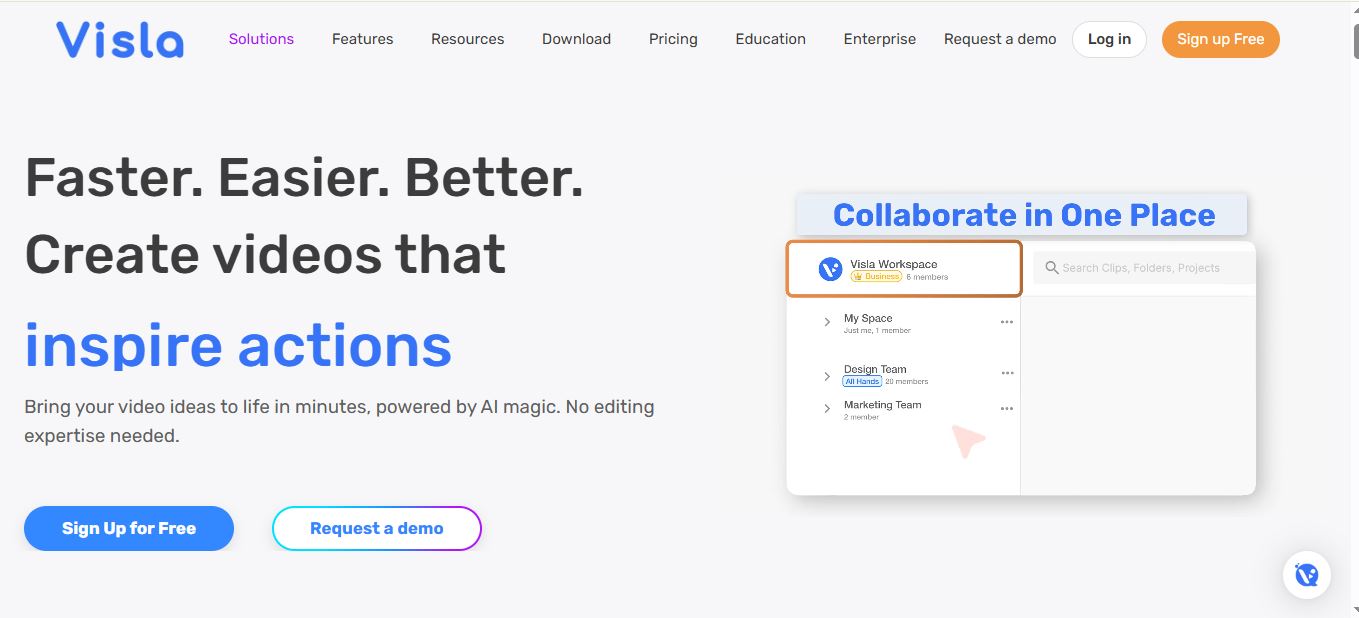
Visla is an AI-powered video creation and editing platform built for businesses, marketing teams, educators, and solo creators who want to produce professional videos without a steep learning curve or an expensive production crew.
What makes it stand out from tools like Runway ML or Kling AI is how many input formats it accepts — you can turn a script, a webpage URL, a PDF, a PowerPoint, raw audio, or even a Zoom cloud recording into a polished video. The platform also features scene-based editing, AI voice cloning, custom avatars, and multi-camera recording — all inside one dashboard.
But before you sign up, there’s one thing you absolutely must understand: everything runs on credits. Not features, not seat licenses — credits. The plan you choose determines how many you get each month and what tools you can unlock.
How Visla Credits Actually Work
This is where most pricing guides get vague. Let me be specific.
Visla uses two types of credits: base credits (included in your plan, reset monthly, do not roll over) and flexible credits (purchased separately, never expire, used after base credits run out). If your account hits zero or goes negative, all AI-intensive tasks are locked until you buy more or wait for next month’s reset.
Credit Consumption by Project Type
| Project Type | Credits / Minute | Minutes from 1,000 Credits |
|---|---|---|
| Text / Script / PDF / Webpage to Video | ~200 | ~5 min |
| Explainer Video | ~170 | ~5.7 min |
| Voice-Based Video (ASR involved) | ~220 | ~4.5 min |
| Visual / Montage / Storytelling Video | ~400 | ~2.5 min |
| Smart Screen Recording | ~300 | ~3.3 min |
| AI Generative Video | ~2,100 | ~0.5 min |
| AI Generative (Full Animation) | ~5,100 | <0.2 min |
| TTS — Public Voice | ~18/min | — |
| TTS — Custom Voice | ~45/min | — |
| Avatar (Lip-sync, per second) | 5 credits/sec | — |
| Custom Voice Creation (one-time) | 2,000 credits | — |
| Custom Avatar Creation (one-time) | 5,000 credits | — |
| Storage (over 1GB) | 1.25/GB/day | — |
The big gotcha: AI generative video eats credits at 10–25× the rate of a standard text-to-video project. If you’re planning to use Visla’s AI Director Mode or fully animated generative clips frequently, the Free plan’s 1,000 monthly credits will last you about 10 seconds of output. That’s not a typo.
For most creators making explainer or marketing videos, though, the credit math is much more forgiving. A 5-minute explainer runs roughly 850 credits — very manageable even on the Free plan.
Visla Plan Comparison at a Glance
| Feature | Free | Pro | Business | Enterprise |
|---|---|---|---|---|
| Price (monthly) | $0 | From ~$18 | From ~$46 | Custom |
| Monthly Base Credits | ~1,000 | 5,000+ | 20,000+ | Unlimited |
| Flexible Credits (top-up) | ✗ | ✓ | ✓ | ✓ |
| Max Export Resolution | 1080p | 1080p | 4K | 4K |
| Custom Avatars | ✗ | 2 | 3 | Unlimited |
| Custom Voice Cloning | ✗ | ✗ | 3 voices | Unlimited |
| Premium Stock Library | ✗ | 2M clips | 16M+ clips | 16M+ clips |
| Getty Images Access | ✗ | Add-on | Included | Included |
| Global Branding (logo, intro, outro) | ✗ | ✗ | ✓ | ✓ |
| Max Upload Size | 3GB / 1hr | 3GB / 1hr | 20GB / 3hr | 20GB / 3hr |
| Watermark Removal | ✗ | ✓ | ✓ | ✓ |
| 2FA Security | ✗ | ✗ | ✓ | ✓ |
| SOC 2 Type II Report | ✗ | ✗ | ✓ | ✓ |
| SSO (Single Sign-On) | ✗ | ✗ | ✗ | ✓ |
| SCORM Export (for LMS) | ✗ | ✗ | ✗ | ✓ |
Credits Per Minute — Visual Comparison
How fast do credits drain? This diagram shows approximate credit consumption per output minute for each video type:
Visla Free Plan — Good Enough to Start, Tight for Scale
The Free plan gives you roughly 1,000 base credits per month, all core video creation modes (text, script, URL, PDF, PPT, audio), full screen recording, multi-camera support, the teleprompter, collaboration features, and 150 public avatars to choose from. Exports top out at 1080p, and every video carries the Visla watermark.
What you do not get: custom avatars, voice cloning, premium stock footage, the ability to buy extra credits, branding controls, or Getty Images access. The upload limit is 3GB per file with a 1-hour cap per video.
✅ Free Plan Pros
- Full suite of video creation modes
- Screen, camera, and multi-camera recording
- Teleprompter + background removal
- Collaboration workspace included
- Auto-transcription and subtitle editing
- Free stock library access
❌ Free Plan Cons
- ~1,000 credits drain fast on longer projects
- Cannot purchase flexible credits
- Visla watermark on all exports
- No custom avatars or voice cloning
- No premium stock footage
- 1080p max resolution only
My take: The Free plan is genuinely useful for experimenting and for light internal use — think short team updates or classroom explainers. But if you plan on making even two or three solid videos a month, you’ll hit the credit wall faster than expected. The moment you start wanting no watermark and clean branding, the Pro plan becomes the logical next step.
Visla Pro Plan — The Sweet Spot for Independent Creators
The Pro plan is where things start to feel serious. You get 5,000+ base credits monthly, access to a 2-million-clip premium stock library (via Storyblocks), watermark removal, two custom avatars, and the ability to top up with flexible credits whenever you need more.
This is also where you unlock co-editing with unlimited editors — a feature that matters if you’re working with a small team or a freelance editor. Upload limits stay at 3GB/1 hour, which is fine for most solo use cases but can feel restrictive if you’re processing long podcast recordings or webinar replays.
One thing to note: custom avatar creation on Pro only works via text description. You can’t upload a photo of yourself on this tier — that method requires Business or Enterprise. The two avatar limit also means if you want a team of different presenters, you’ll quickly hit the ceiling.
For the kind of creator producing regular social content, YouTube explainers, or client-facing tutorial videos, Pro offers more than enough horsepower — especially if you understand how to plan your credit budget before starting each project.
Compare this to Syllaby, which takes a different approach to AI video scripting, or MakeUGC AI for avatar-first UGC creation — both worth exploring if your workflow centers on social video at scale.
✅ Pro Plan Pros
- 5× more credits than Free
- No watermark on exports
- 2 custom avatars unlocked
- 2M+ premium Storyblocks clips
- Can buy flexible credits
- Unlimited co-editors
❌ Pro Plan Cons
- Still capped at 1080p
- No voice cloning
- No global branding controls
- 3GB / 1-hour upload ceiling
- Avatar via text description only
- No Getty Images (add-on cost extra)
Visla Business Plan — Designed for Teams That Take Video Seriously
Business is where the platform shifts from a creator tool into a true production asset. The credit jump to 20,000+ per month is significant — that’s enough to produce roughly 100 minutes of text-based video output monthly without buying a single top-up credit.
The key upgrades here are 4K export, Getty Images included (giving you access to over 20 million licensed clips), global branding controls (logo overlays, custom intros/outros), voice cloning for up to 3 voices, three custom avatars (now creatable by photo or webcam, not just text description), auto-labeling of your private stock library, two-factor authentication, and SOC 2 Type II compliance access.
The upload ceiling also jumps to 20GB per file and 3-hour video length — meaningful if you’re repurposing long-form webinars or conference recordings.
If you’re running a marketing team, an L&D department, or an agency producing branded video at scale, Business is probably where you belong. The video creation API also gets a “Priority” tier here versus the standard access on Free and Pro — meaning your API-triggered jobs are prioritized in the processing queue.
If you’re also evaluating other AI video tools in this category, my comparison of Revid AI vs HeyGen or this guide to the best AI UGC video generators may help round out your research.
✅ Business Plan Pros
- 4K export quality
- 20,000+ credits — rarely runs out
- Getty Images (20M+ clips) included
- Global branding kit (logo, intro, outro)
- Voice cloning (3 voices)
- Full Dashboard analytics
- SOC 2 + 2FA security
- 20GB / 3-hour uploads
❌ Business Plan Cons
- No SSO (Enterprise only)
- No SCORM export for LMS
- Voice cloning limited to 3 voices
- Custom avatar cap at 3
- Higher price jump from Pro
Visla Enterprise Plan — When Scale and Compliance Are Non-Negotiable
Enterprise pricing is custom — you’ll need to contact Visla’s sales team for a quote. What you’re paying for is effectively no ceiling on anything: unlimited credits, unlimited custom avatars, unlimited voice clones, SSO for centralized IT control, SCORM package export for LMS deployment, top-priority API access, a dedicated account manager, onboarding support, and advanced governance controls.
This tier also makes sense for industries with strict data governance requirements — healthcare, financial services, education institutions — where SOC 2 documentation, role-based access controls, and SSO aren’t optional extras but table stakes.
If you’re evaluating Visla for a large team producing hundreds of videos monthly, this is the tier to negotiate. The lack of a published price is standard for enterprise SaaS — expect volume discounts and custom SLAs to be part of the conversation.
How I Tested Visla — My Methodology
I tested Visla across multiple project types over several weeks. Here’s exactly what I did and what I found:
Text-to-video and script-to-video: Ran multiple short explainer videos (2–4 minutes) from typed scripts. The AI voice selection is solid, with natural pacing. B-roll recommendations were contextually relevant about 70% of the time — occasionally it would drop in generic footage that felt disconnected from the narration.
Screen recording: Used the Chrome extension for step-by-step screen recording. Auto-zooming worked well but sometimes zoomed into the wrong element — I had to manually override zoom points on about 30% of steps.
Transcript-based editing: This is genuinely impressive. Cutting silences, filler words (“um,” “uh”), and repetitive phrases from a 20-minute recording takes under 2 minutes. The transcript editor is fast and accurate.
Credit tracking: The dashboard credit tracker updates in near real-time. I never had a project get cut off mid-export, but I did get a low-credit warning notification — which was useful. The credit deduction for ASR (Automatic Speech Recognition) on a 20-minute upload was roughly 600 credits, which felt high if you’re just trying to edit a meeting recording.
UX issues I found: On slower connections, the video generation queue can stall without a clear error message — the spinner just keeps going. There’s no explicit “generation failed” status; you have to refresh the page manually. Also, the scene editor occasionally reorders clips after a browser refresh (confirmed as a known bug as of mid-2026).
Despite those niggles, the platform is remarkably capable for the price. Most tools in this space — like Sjinn AI or tools from the Sora AI alternatives category — either lack the editing depth or the workspace collaboration that Visla handles well.
Which Visla Plan Is Right for You?
Visla Avatar Pricing — The Real Credit Cost
Custom avatars are one of Visla’s most compelling features, and one of the trickiest to budget for. If you’re comparing Visla to dedicated AI avatar platforms, here’s how the credit economics actually work:
Avatar Character Image (AI-generated): 200 credits (one-time, skip if uploading a photo)
Avatar Motion Video Sample: 5,000 credits (one-time, required for lip-sync)
Per-use lip-sync rendering: 5 credits per second of avatar screen time
Custom Voice Creation: 2,000 credits (one-time)
So if you’re on Pro (5,000 credits/month) and create your first avatar from scratch, you’ll burn nearly all your monthly credits just on setup — before generating a single video. Plan accordingly. Business users with 20,000+ credits will find avatar workflows far more sustainable.
Annual vs. Monthly Billing — Is the Discount Worth It?
Visla offers a meaningful discount for annual billing — reportedly around 50% off the monthly rate. Your monthly base credits stay the same whether you pay monthly or annually; the only difference is total cost. Annual commitments also tend to include more responsive support and priority status.
One thing worth flagging: subscription fees are non-refundable per Visla’s refund policy. If you cancel a paid plan, your account stays active until the period ends, then downgrades to Free. Any unused flexible credits get frozen (not lost) — you can reactivate them if you re-subscribe later.
My recommendation: start with a monthly Pro plan for 60 days to understand your credit usage patterns, then switch to annual billing if the fit is right.
Visla’s Key Numbers at a Glance
Integrations That Extend Visla’s Value
All paid plans include integrations with Slack, Zoom Cloud Recordings, Zapier (6,000+ apps), Canva, and Adobe Express. The Zapier integration is particularly powerful — you can trigger video creation automatically from events in tools like HubSpot, Airtable, or Google Sheets, making Visla a real automation platform rather than just a standalone editor.
Visla also has its own API, with access tiers escalating from Standard (Free/Pro) to Priority (Business) to Top (Enterprise). This is relevant if you’re building automated video generation into your own product or internal workflow.
If you want to explore more AI video tools that work alongside Visla — especially for UGC and short-form content — check my list of Wava AI alternatives or this roundup of AI avatar platforms with 24/7 human support.
Frequently Asked Questions
How much does Visla cost per month?
Visla’s Free plan is $0. The Pro plan starts at approximately $18/month (billed monthly) with a discount for annual payment. Business starts at approximately $46/month. Enterprise pricing is custom — contact Visla’s sales team directly. Always check the live pricing page at visla.us/pricing as rates may have changed.
Do Visla credits roll over each month?
Base credits (included in your plan) do NOT roll over — they reset on your billing date each month. Flexible credits (purchased separately) do roll over indefinitely and never expire, even if you cancel your subscription (they become frozen and can be re-activated on renewal).
Can Free plan users buy extra credits?
No. Free plan users cannot purchase flexible credits. If you run out of base credits, you must wait until the next monthly reset. Only Pro, Business, and Enterprise subscribers can top up with flexible credits.
What happens to my credits if I switch plans?
Unused base credits are converted to the new plan’s credit rate using each plan’s Credit Conversion Rate (CCR). For flexible credits, they’re adjusted by the ratio of the new CCR to the old CCR. For example, switching from Pro (CCR 150) to Business (CCR 100): 1,000 unused flexible credits would become approximately 667 credits on the Business plan.
Is Visla worth it compared to other AI video tools?
It depends on your use case. Visla’s strength is its combination of creation modes (text, script, URL, PDF, audio) plus editing, recording, and collaboration in one platform. Compared to dedicated tools like those in the Sora AI alternatives space, Visla is more of an all-in-one workhorse. If you need pure generative video quality, niche tools may outperform it. For business video production at reasonable cost, Visla’s Pro and Business plans deliver strong ROI.
Does Visla have a refund policy?
Visla’s subscription fees are non-refundable per their published refund policy. If you cancel, you retain access through the end of the billing period. Flexible credits that are already purchased are also non-refundable but can be frozen and re-used if you renew a paid plan later.
How many videos can I make with Visla’s Free plan?
With 1,000 monthly base credits, you can create approximately 5 minutes of text-based video output per month. In practical terms, that’s two to three short (90-second) explainer videos before credits run out, assuming no voice cloning or avatar usage. Screen recording and basic editing do not consume credits.
Conclusion
Visla has one of the more honest pricing structures in the AI video space — once you understand how credits work. The platform doesn’t hide features behind arbitrary plan walls; it lets credits determine how much you can produce, and it’s transparent about consumption rates.
Free is genuinely usable for light content or testing. Pro is the right entry point for anyone serious about content creation, with enough credits for consistent output. Business is where brand control, 4K quality, and Getty access make the price jump justifiable for teams. Enterprise removes all ceilings for organizations that operate at scale.
The one thing I’d advise before committing: spend a week on the Free plan mapping out exactly what kind of videos you’ll make and how many minutes per month you realistically need. Run that through the credit consumption table above and you’ll know exactly which plan to pick — without any guesswork.
If you’re still evaluating the video AI landscape more broadly, my reviews of Syllaby, the comparison of Revid AI vs HeyGen, and this list of top AI UGC video generators are worth bookmarking.
Ready to start creating AI videos?
Try Visla’s Free plan — no credit card required. See for yourself how far 1,000 credits takes you before deciding on a paid plan.
Get Started with Visla Free →

