
In-Depth Review · 2026
Visla Review 2026: My Honest Take After Putting It Through Its Paces
I tested Visla’s full feature set — AI video generation, screen recording, voice cloning, and team collaboration — across real projects. Here’s exactly what works, what doesn’t, and whether it’s worth your money.
By Oyekale Olawale · Updated August 2026
⚡ Quick Answer
Visla is a strong, all-in-one AI video platform that genuinely speeds up the entire production workflow — from scripting and screen recording to AI-generated B-roll, voiceovers, and team collaboration. It’s best for marketers, educators, and business teams who need consistent video output without a dedicated editor. The Free plan is real (not a bait-and-switch), and the Pro tier starts at around $9–19/month. The biggest caveats: AI-generated voiceovers can sound synthetic without fine-tuning, and Business/Enterprise features like 4K export and auto-labeling of private stock require an upgrade.
🧪 How I Tested Visla
I spent several sessions inside Visla’s dashboard creating real projects: a short internal training clip for a mock SaaS workflow, a marketing promo built from a blog post URL, and a screen-step tutorial video. I also imported an existing YouTube video and used the transcript editor. I was specifically looking at how much the AI reduced manual effort, where it broke down, and whether the output was actually usable without heavy post-processing.
What Is Visla?
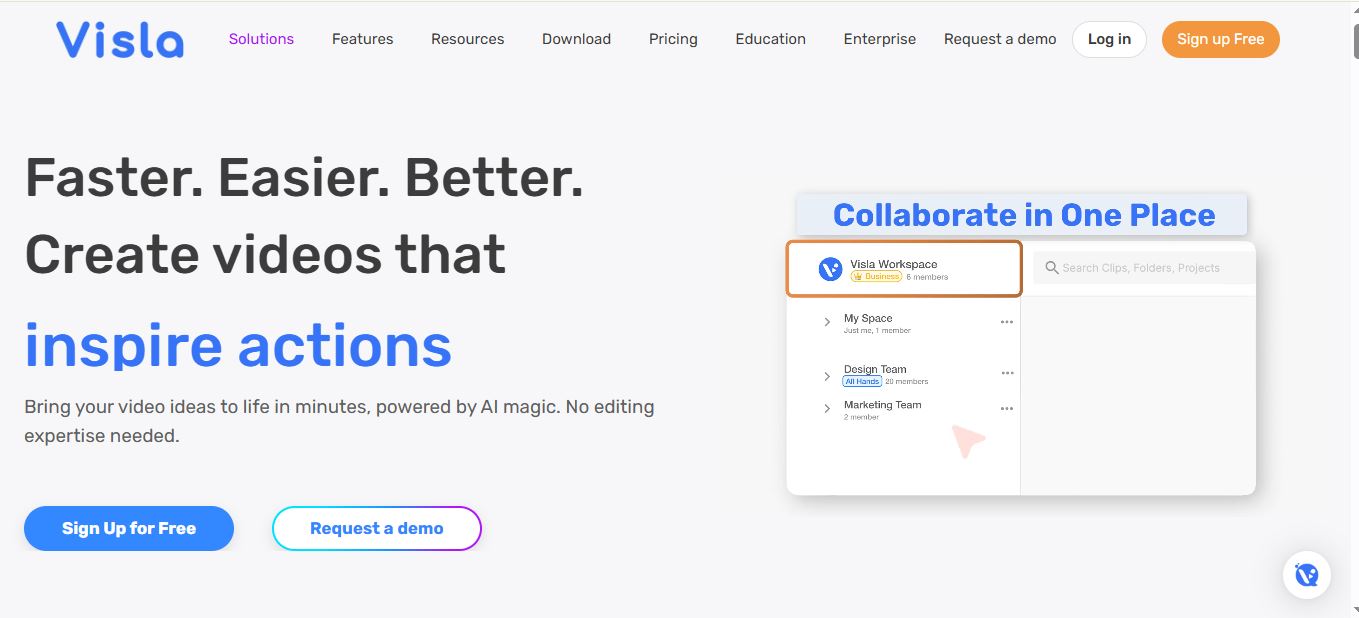
Visla is a browser-based AI video creation, editing, and collaboration platform built for teams and individual creators who want to produce professional-quality videos without hiring an editor or learning complex software. Founded in 2020 and headquartered in Sunnyvale, California, Visla Inc. has positioned its product as an end-to-end video workflow tool — meaning you can record, generate, edit, and share everything in the same dashboard.
What separates Visla from a basic screen recorder or a simple AI clip tool is the depth of integration between its different modules. Its AI Video Agent can take a URL, a PDF, a PowerPoint file, a script, or even raw audio and turn it into a structured multi-scene video with voiceover, subtitles, and B-roll pulled from a stock library — all without you touching a timeline. That’s genuinely impressive.
Visla is also SOC 2 Type II certified, which matters if you’re creating internal training videos for a company that cares about data security. If you’re in the market for AI tools for generating video content at scale, Visla is one of the most complete platforms I’ve tested.
How Visla’s Workflow Fits Together
INPUT
Script · URL · PDF · PPT · Audio · Video
AI AGENT
Script · Scenes · Voiceover · B-Roll · Subs
EDIT
Scene editor · Transcript cuts · Brand kit
SHARE
Download · Link · Embed · Teamspace
Who Should Actually Use Visla?
Not every AI video tool is built for the same person, and Visla is no exception. I’d say it fits a specific sweet spot — and it’s honest about that.
It works well for: marketing teams producing product demos, onboarding videos, and social content at scale. Educators turning slide decks into narrated lessons. HR and People Ops teams who need consistent, on-brand training clips. Customer success teams building help and tutorial libraries. Freelancers who need to deliver client videos quickly without hiring a full editor.
It’s not ideal for: cinematic or heavily motion-graphic-driven content, social-first short-form creators who need TikTok-native editing, or anyone who wants deep timeline control like Adobe Premiere gives you. If your benchmark is high-end visual storytelling, tools like RunwayML or dedicated motion design software will serve you better.

Visla’s AI video generator: I typed a brief description of my training topic and hit generate. The draft was ready in minutes.
Visla’s Key Features — And How They Performed in Testing
Let me be direct: Visla packs in a lot. Too much to skim over in a summary. Here’s how the main modules actually performed during real use.
1. AI Video Agent — The Core Feature
The AI Video Agent is the headline act. You feed it almost anything — a blog post URL, a PDF, a PowerPoint, a plain text script, or even audio — and it builds a structured video draft with scenes, AI voiceover, background music, and stock B-roll within minutes.
When I pasted a 1,200-word blog post URL into it, the agent broke it down into a logical sequence of about 8 scenes, picked contextually appropriate stock footage for each one, and laid an AI voiceover on top. The pacing was surprisingly good on the first draft. I expected to spend significant time chopping things up — and I still made adjustments — but the structural skeleton it gave me was actually usable, not a mess.
The AI Director Mode (a newer addition to the platform) goes a step further, using a storyboard approach that lets the AI maintain visual consistency of characters and environments across scenes. It’s still being refined, but it’s a meaningful leap for creators who need narrative coherence, not just slideshow-style footage cuts.
2. Scene-Based Editing
Once the AI generates your draft, you’re not locked into it. The scene-based editor lets you go into each scene and change the voiceover text, swap the B-roll clip, adjust the background music level, add text overlays, apply transitions, or toggle the AI avatar on and off.
This is where Visla differentiates itself from tools that just spit out a video and call it done. The transcript-based editing is particularly useful — you can literally highlight text in the transcript to cut or extract that section from the video, without hunting through a timeline. For long recordings especially, this saves real time. It’s similar in concept to tools like Descript, though Visla wraps it more tightly into the full video creation workflow.
3. Screen Recording and Screen Step Recorder
The built-in screen recorder is solid — you can capture your full screen, a selected area, or a single window, with or without your camera and microphone. It includes annotation tools, auto-zoom, and auto-pan, which are helpful for keeping viewer focus without manual post-processing.
The Screen Step Recorder is my personal favourite of these tools. It watches what you do on screen and automatically breaks it into numbered, annotated steps — ideal for SOPs, onboarding walkthroughs, and support documentation. Instead of recording a 10-minute screen session and manually cropping it down, you just do the thing you want to document and the AI structures it for you. It can even export steps as GIFs, which is genuinely useful for internal help centres.
I also appreciate that you can use your phone as a webcam via QR code, without needing a cable or a separate app. Small detail, but it matters for solo creators who want a better camera angle without investing in extra hardware.

My Visla dashboard after a few test sessions — the workspace stays clean even when juggling multiple project types.
4. AI Voice Cloning and Custom Avatars
Visla gives you access to over 150 public AI avatars on all plans. On Business and Enterprise, you can create your own custom avatar from a photo and clone your voice using a short audio sample. The voice cloning costs 2,000 credits as a one-time charge per custom voice; each minute of TTS using your cloned voice runs about 45 credits (versus 18 credits for a public voice).
In practice, the public AI voices are decent for informational content. They won’t replace a real voiceover artist for marketing campaigns where tone and warmth matter, but for training videos or internal comms they’re serviceable. The cloned voice option is where things get genuinely useful — if you’re a solo creator or a founder who wants your voice on every video without recording every sentence manually, this is a real workflow accelerator.
5. Private Stock Library
One of Visla’s most underrated features for agencies and brands is the Private Stock Library. You can upload your own branded footage, product shots, and team recordings, and Visla’s AI will tag and index them automatically on Business/Enterprise plans (manual labelling is required on Free and Pro). From there, the AI Video Agent can pull from your private stock when building new videos, not just generic Storyblocks or Getty footage.
For brands that want consistent on-brand visuals across hundreds of videos, this is a serious feature. It’s one of the things that makes Visla genuinely useful for agencies rather than just individual creators. If you’re looking for a tool for producing branded video content at scale, the private stock functionality is a clear differentiator.
6. Team Collaboration and Workspaces
Visla’s collaboration model uses Workspaces and Teamspaces with role-based permissions — owners, members, and guests. You can leave timestamped comments on specific points in a video, control whether viewers can download or duplicate content, and share via link or embed code. Zoom Cloud recordings can be automatically pulled into your Visla library, and there’s a Slack integration for sharing clips without leaving that environment.
For agencies juggling multiple clients, the ability to create separate Teamspaces with different private footage libraries per client is a real workflow benefit — something that other AI video agent platforms don’t always handle cleanly.

A generated video draft showing the multi-scene structure that Visla’s AI built from a blog post URL.
Bugs and UX Frustrations I Actually Noticed
No review from me is complete without calling out the rough edges. Here’s what I ran into:
Credit consumption transparency: Visla runs on a credit system, and while the FAQ is detailed, the UI doesn’t always make it obvious how many credits a specific operation will consume before you commit. I went into a project expecting a 200-credit text-based video and ended up triggering a voice-based pipeline (300+ credits per minute) because the input had embedded audio. A pre-operation credit estimate in the interface would fix this.
AI voiceover pacing issues: On longer scenes, the AI TTS voice occasionally rushes through technical terms or pauses awkwardly after punctuation. It’s manageable when you go back and manually adjust the script, but it’s annoying on a first pass.
Stock footage mismatch on abstract topics: When I generated a video about “AI content strategy,” the agent pulled a few generic “person typing at a laptop” clips that didn’t match the tone I wanted. The AI footage recommendation is strong for concrete subjects (product demos, location-based content) but weaker for abstract business topics.
No offline mode: Everything runs in the browser. If your connection drops mid-generation, you lose progress on that task. This is a minor complaint for most users, but worth knowing if you work in environments with unreliable internet.
Visla Pricing: What You Actually Get on Each Plan
Visla uses a credit-based billing model layered on top of tier subscriptions. Base credits refresh monthly with your plan and don’t roll over. Flexible credits can be purchased additionally and do roll over. Here’s how the tiers compare — and for exact current pricing, check the official Visla pricing page since promotional discounts change frequently.

| Feature | Free | Pro | Business | Enterprise |
|---|---|---|---|---|
| Max Export Resolution | 1080p | 1080p | 4K | 4K |
| Premium Stock Library | ❌ | 2M clips (Storyblocks) | 16M+ clips | 16M+ clips |
| Getty Images Access | ❌ | Add-on only | ✅ Included | ✅ Included |
| Custom AI Voice Clones | ❌ | ❌ | Up to 3 | Unlimited |
| Custom Avatars | ❌ | 2 | 3 | Unlimited |
| Auto-Labeling Private Stock | ❌ | ❌ | ✅ | ✅ |
| Global Branding + Brand Kits | ❌ | ❌ | ✅ | ✅ Multiple |
| Visla Watermark Removal | ❌ | ✅ | ✅ | ✅ |
| SOC 2 Type II | ❌ | ❌ | ✅ | ✅ |
| File Upload Limit | 3GB / 1hr video | 3GB / 1hr video | 20GB / 3hr video | 20GB / 3hr video |
| SCORM Export (LMS) | ❌ | ❌ | ❌ | ✅ |
Approx. Credit Consumption by Project Type (per minute of output)
Source: Visla’s official pricing FAQ. Actual consumption may vary based on video length and re-generations.
For a detailed breakdown of how credits are consumed and which plan makes sense for your volume, see my separate deep-dive on Visla’s pricing plans explained.
Ready to see if Visla fits your workflow?
The free plan is genuinely functional — no credit card needed to explore.
Start Your Free Visla Account →Visla vs. Competing AI Video Tools
There’s no shortage of AI video tools right now — see my full list of AI video platform alternatives if you want to compare more options. But for the main competitors:
| Feature | Visla | InVideo AI | Runway ML | Syllaby |
|---|---|---|---|---|
| AI from text/URL/PDF | ✅ Strong | ✅ Good | ⚠️ Partial | ✅ Good |
| Screen Step Recorder | ✅ Yes | ❌ | ❌ | ❌ |
| Transcript-Based Editing | ✅ Yes | ⚠️ Limited | ✅ Yes | ❌ |
| Private Stock Library | ✅ Yes (all plans) | ⚠️ Partial | ❌ | ❌ |
| Voice Cloning | ✅ Business+ | ✅ Yes | ❌ | ✅ Yes |
| SOC 2 Compliance | ✅ Type II | ⚠️ Partial | ❌ | ❌ |
| Best For | Teams, agencies, educators | Social creators | Cinematic AI video | Social-first creators |
If you’re comparing Visla specifically against Runway, the answer is straightforward: they serve different use cases. RunwayML is for generative, cinematic-quality video creation. Visla is for structured business and educational content at scale. They’re not really competing for the same user. If you’re looking at social-first tools for faceless video, tools like Brainrot.mov or Syllaby might be closer to what you need. Also worth exploring: my list of Sora AI alternatives if generative video is your goal.
Pros and Cons
✅ What I Liked
- AI Video Agent produces genuinely usable first drafts — not just raw clips
- Screen Step Recorder is best-in-class for SOP and tutorial content
- Transcript-based editing cuts hours off long-form video cleanup
- Private Stock Library is a real differentiator for agencies and brands
- SOC 2 Type II compliance matters for enterprise use cases
- Free plan is functional, not a bait-and-switch trial
- Canva, Slack, Zoom, Adobe Express, and Zapier integrations out of the box
- 150+ public AI avatars on all plans
❌ What Needs Work
- AI voiceover pacing can feel robotic on complex, fast-moving scripts
- Credit cost isn’t always shown before an operation begins
- Stock footage suggestions for abstract topics can be generic
- 4K export, auto-labelling, and brand kits locked behind Business tier
- Voice cloning requires Business or Enterprise plan (no Pro access)
- No offline mode — fully browser-dependent
- AI generative video costs 2,100 credits/minute — expensive at scale
Real-World Use Cases Where Visla Earns Its Place
After testing, here are the scenarios where I think Visla delivers the clearest return on time and money:
Turning blog posts into video content: A marketer can paste a URL into the AI Video Agent and have a video draft in under five minutes. The pacing and scene structure need refinement, but the heavy lifting is done. This is the use case Visla genuinely nails.
Building internal training libraries: HR teams can record a process once using the Screen Step Recorder, and the tool turns it into an annotated, narrated tutorial. No editor needed. Combined with Teamspaces and permission controls, this becomes a proper internal video knowledge base.
Repurposing long-form recordings: Got a 90-minute webinar? Import it via YouTube URL, let Visla transcribe it, then use topic-based extraction to pull the 5 most relevant segments. You’ve got five short clips without touching a timeline.
Agencies managing multi-client video: Separate Teamspaces per client, private stock per brand, brand kit consistency per project. Visla handles the workflow scaffolding that would otherwise require manual organisation across separate tools.
Frequently Asked Questions
Is Visla free to use?
Yes. Visla has a genuine Free plan that includes AI video generation from text, scripts, URLs, and PDFs, plus screen recording, scene-based editing, and access to the free stock library — all with a Visla watermark and 1080p maximum export. You get monthly base credits that refresh but don’t roll over. Free users cannot purchase additional flexible credits. It’s enough to evaluate whether the platform fits your workflow before committing to a paid plan.
How does Visla’s credit system work?
Visla charges credits per minute of video output, not per project. The cost varies by project type: text-based videos cost roughly 200 credits per minute, while AI generative videos cost around 2,100 credits per minute. Base credits are included with your monthly subscription and reset each billing cycle without rolling over. Flexible credits can be purchased on Pro and Business plans and do roll over. If your workspace hits zero credits, all resource-consuming tasks are halted until you purchase more or your cycle resets.
Can I use my own voice in Visla videos?
Yes, in two ways. First, you can record a voiceover directly inside the editor and add it to any scene. Second, Business and Enterprise users can clone their voice using Visla’s AI Voice Cloning feature — a one-time cost of 2,000 credits per voice — and then use that cloned voice for TTS narration at approximately 45 credits per minute. The cloned voice option is the more scalable choice if you’re producing high-volume content and want consistent narration without re-recording every time.
Is Visla suitable for teams and agencies?
Yes — and I’d argue it’s one of the stronger options for teams specifically. Workspaces and Teamspaces with role-based permissions let you separate projects by client or department. The Business plan adds global branding, auto-labelling of private stock, and SOC 2 Type II compliance, which are meaningful requirements for agencies handling client data and brand assets at scale.
What file formats and inputs does Visla accept?
Visla accepts text, scripts, URLs, PDFs, PowerPoint files, audio files, existing video files (including imports via YouTube link), and images. Screen recordings and camera recordings can be captured directly in the browser. File uploads are limited to 3GB / 1-hour video on Free and Pro, and 20GB / 3-hour video on Business and Enterprise.
How does Visla compare to InVideo AI for content creators?
Both tools convert text-based inputs into video drafts, but they’re optimised differently. InVideo AI leans heavily into social-first short-form content and is simpler to use for solo creators producing YouTube Shorts or TikTok clips. Visla goes deeper on collaboration, private asset management, transcript editing, and SOC 2 compliance — making it the stronger choice for business teams, agencies, and educators who need structured workflow control, not just fast social clips. If you’re looking at other options in this space, I’ve reviewed several AI tools for video content generation across different use cases.
Conclusion: Is Visla Worth It in 2026?
Visla is one of the few AI video tools that can genuinely replace multiple separate tools in your workflow. It covers recording, AI generation, editing, collaboration, and distribution — and it does most of those things well enough that the gaps are minor inconveniences rather than dealbreakers.
The AI Video Agent and Screen Step Recorder are the standout features — both are best-in-class for their categories. The credit system requires a bit of learning to predict costs accurately, and the AI voices need fine-tuning for anything more than informational content. But for a team that needs to produce consistent, on-brand video at volume without a dedicated editor? Visla removes more friction than almost any other tool I’ve tested.
Start with the free plan. Run a real project through it — not a toy test. If the AI draft saves you more than an hour on your first video, the Pro tier is an easy decision. If you’re running a team or agency, the Business plan’s branding, stock library, and compliance features are genuinely worth the upgrade.
My Visla Ratings (out of 10)
Start Creating with Visla Today
No editing expertise required. Build your first AI video in under 10 minutes — for free.
Try Visla Free — No Credit Card Needed →


