Pixie.haus Review 2026: I Ran the Same Prompt Through Every Model — Here’s What Actually Held Up
An honest, hands-on look at pixie.haus after its 2026 model and pricing overhaul — updated from my original 2025 review.
By Oyekale Olawale · Updated July 2026
Quick Answer
Yes, pixie.haus is still worth it in 2026 — more so than when I first reviewed it. It’s a pay-as-you-go pixel art generator with no subscription: $5 for 600 credits (about 300 fast generations), 4 creative modes (Picture, Animation, Edit Image, Upload), and a Lospec-compatible palette system. The model lineup has completely changed since my last review — Gemini Nano Banana and Imagen 4 have replaced the older FLUX/Luma setup — and quality is noticeably more consistent. The catch: you’re capped at 128×128 resolution, and the built-in editor, while genuinely useful, still isn’t a substitute for Aseprite if you need layers.
I first reviewed pixie.haus back when it was running on FLUX.1 Schnell and Luma Photon Flash. Going back into the platform this month, almost nothing about the generation stack is the same — new models, a rebuilt credit-pack structure, and a resolution system that wasn’t there before. So instead of just refreshing a few numbers, I rebuilt this review from scratch, re-tested every mode, and ran a single prompt through the current pipeline to see exactly what changed.
What Is pixie.haus?
pixie.haus is a browser-based AI pixel art generator built specifically for game developers, indie artists, and content creators who need sprites, tilesets, and pixel-perfect animations without hand-drawing every frame. Instead of running a general image model and hoping the output looks “pixel-ish,” it forces generations into a strict 1:1 grid, locks color output to real palettes (including Lospec-standard sets like pico-8, sweetie-16, and endesga-32), and strips backgrounds automatically so assets are game-ready on export.
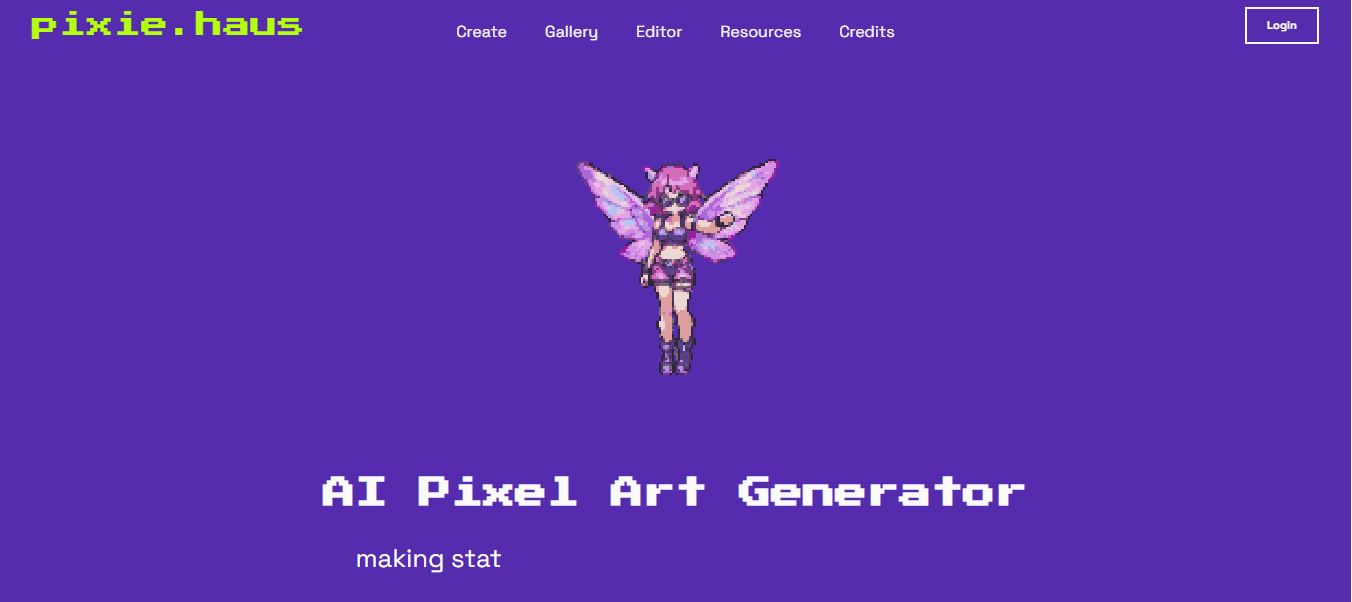
The platform is solo-developed and still fairly young, which shows up in small ways (a smaller template library than something like Freepik, for instance), but the pixel-specific pipeline is genuinely rare. Most general AI generators — even strong ones like Kling AI or RunwayML — will happily give you a “pixel art style” image full of anti-aliased edges and inconsistent color counts. pixie.haus doesn’t do that; the grid-snap is enforced at the pipeline level, not just prompted for.
What’s Actually Changed Since My Last Review
If you read my original write-up, here’s what’s different on the platform today:
| Then (2025 review) | Now (2026) |
|---|---|
| FLUX.1 Schnell + Luma Photon Flash | Prunaai, Schnell, Gemini Nano Banana, Imagen 4 & 3 Fast |
| Minimax/Video-01-Live for animation | Seedance-1-Pro-Fast (recommended for animation) |
| No stated resolution options | 32×32, 64×64, 128×128 (16×16 in the free editor) |
| Single $5/600-credit pack | Three tiers: $5 / $15 / $60, up to 52% savings at the top tier |
| 2 creative modes (generate + edit) | 4 modes: Picture, Animation, Edit Image, Upload Image |
Who Is It For?
If any of these sound like you, pixie.haus is worth the $5 test:
- Indie/solo game devs who need quick NPC sprites, item icons, or tilesets without hiring a pixel artist for every asset.
- Content creators and streamers who want retro-style avatars, emotes, or overlay assets.
- Digital artists experimenting with AI-assisted pixel workflows who still want manual control via the free editor.
- Small studios needing fast concept-to-asset iteration before committing budget to a full-time artist.
If your work is high-resolution digital painting, photorealistic renders, or 3D — tools like 3D mockup generators or a dedicated ProVisual-style tool will serve you better. pixie.haus is purpose-built for one thing, and it does that one thing well.
The 4 Creative Modes, Explained
This is the biggest structural change since 2025 — pixie.haus now splits generation into four distinct modes instead of one generic “generate” button:

- Picture Mode — text-to-pixel-art. Choose a model, resolution, and optional palette, and generate from a written prompt.
- Animation Mode — takes a first-frame image (generated or uploaded) and animates it into an idle, walk, or attack loop based on a motion prompt.
- Edit Image Mode — image-to-image editing that swaps outfits, lighting, or details while keeping the underlying pixel structure intact.
- Upload Image Mode — downsamples your own sketches, 3D renders, or photos into clean, grid-snapped pixel art.
Each mode has a background-removal toggle on by default — turn it off if you’re generating a full scene rather than an isolated sprite. Resolution is capped at three options: 128×128 for the best consistency, 64×64 for faster iteration, and 32×32, which the platform itself flags as experimental and best reserved for very simple objects.
My Hands-On Test: One Prompt, Real Output
To see how the new model lineup actually performs, I ran this prompt through Picture Mode at 128×128:
“A cozy cyberpunk café at sunset, warm neon lights reflecting on rainy streets, a young woman reading by the window, cinematic lighting, ultra-detailed, vibrant colors, shallow depth of field.”
This is a deliberately tough prompt for a pixel art tool — it’s a full scene with atmospheric lighting terms (“cinematic,” “shallow depth of field”) that push toward photorealism, exactly the kind of prompt the old FLUX/Luma stack used to struggle with.

The neon-and-rain concept translated into a genuinely readable pixel scene — the palette leaned into warm oranges and cool blues the way the prompt asked, and the grid-snap held even with a busy composition. It’s not going to fool anyone into thinking a human hand-placed every pixel, but as a starting frame for a game background or a stylized thumbnail, it did the job in under three minutes. Where it fell short: “shallow depth of field” is a concept the model mostly ignored — pixel art at this resolution doesn’t really have room for a blur gradient, so cinematic camera language is largely wasted tokens in your prompt. I’d have gotten a cleaner result writing straight object/scene description and letting the palette carry the mood instead.
Models & Credit Costs
| Model | Best For | Relative Cost |
|---|---|---|
| Schnell | Fastest results, quick iteration | Lowest (~3 credits) |
| Prunaai | Best speed/quality/price balance | Low–Moderate |
| Imagen 4 & 3 Fast | Mature style, high consistency | Moderate |
| Gemini Nano Banana | Complex prompts, best for editing | Higher |
| Seedance-1-Pro-Fast | Animations — best consistency-to-price ratio | ~55 credits/animation |
Pricing: What You Actually Get
Every new account gets 50 free credits to test before buying anything. Beyond that, it’s a one-time credit purchase — no monthly subscription, and credits never expire.
| Pack | Price | Fast Gens | Animations |
|---|---|---|---|
| 600 Credits | $5 | ~300 | ~10 |
| 3,000 Credits (Most Popular) | $15 | ~1,500 | ~54 |
| 15,000 Credits | $60 | ~7,500 | ~270 |
One detail worth knowing before you check out: if you’re purchasing as a business and need a proper VAT invoice, the default Stripe checkout only issues B2C receipts — you’ll need the separate Lemon Squeezy business checkout to get a compliant B2B tax invoice with reverse-charge support.
The Built-In Editor
You don’t need credits to use the standalone editor — it’s free and works at 16×16, 32×32, 64×64, or 128×128 canvas sizes. It supports color fill, straight-line drawing (Shift+click), a color picker (Alt/Option+click), brush size adjustment, background toggling, grid overlay, and full undo/redo. It’s genuinely capable for touch-ups, but it’s still a browser tool — there’s no layer system or onion-skinning for animation, so anything beyond quick fixes still means exporting to a proper external workflow if you’re building a full production pipeline.
Community Gallery
Every generation can be published to the public gallery, where other users can “collect” your work (which grants them usage rights too) or tip you in credits. It’s also a useful research tool before you spend anything — browsing the gallery by model tells you what each one actually produces far better than a marketing screenshot does.

Pros and Cons
✅ Pros
- No subscription — pay once, credits never expire
- 50 free credits to test before buying
- Genuine pixel-perfect grid snap, not just a filter
- Lospec-compatible palette locking
- 4 distinct modes cover generation, editing, and animation
- Free standalone editor, no credits required
- Commercial use rights included
❌ Cons
- Resolution capped at 128×128 — no larger canvas option
- No layers or onion-skin animation tools in the editor
- Cinematic/photographic prompt language mostly gets ignored
- Animations are credit-heavy (~55 credits each on the recommended model)
- Business VAT invoices require the separate Lemon Squeezy checkout
- Small platform — smaller community and template library than mature competitors
How It Compares
General-purpose AI generators aren’t real competitors here — a tool like Nano Banana 2 or Vheer AI can produce a “pixel-style” image, but neither enforces the grid-snap and palette lock the way pixie.haus does natively. If you want AI-assisted stock or template art for non-game use, Freepik is the broader tool. If you need clean backgrounds removed from existing photos rather than generated sprites, an object-removal API is a better fit. For manual, full-control pixel art with layers and rigging, Aseprite or Pixelorama remain the standard — pixie.haus is best used as the fast first draft that feeds into those tools, not a total replacement for them.
Bottom Line: Is Pixie.haus Worth It?
Yes. The 2026 model refresh is a real upgrade over what I tested last year — Gemini Nano Banana and Imagen 4 handle complex prompts noticeably better than the old FLUX/Luma pairing, and the new four-mode system (Picture, Animation, Edit, Upload) makes the workflow feel far more deliberate than the original single-generate flow. At $5 for a first pack, with 50 free credits to try before you buy anything, there’s essentially no financial risk in testing it against your own use case. Just don’t expect it to replace a dedicated pixel-art editor for complex animation work — treat it as the fastest way to get from idea to first draft, not the final step in your pipeline.
FAQ
Can I use pixie.haus art commercially?
Yes. You own the rights to the original pixel art you generate and can use it for any personal or commercial project. The one exception is trademarked characters (e.g., existing game IP) — those are limited to non-commercial fan use under copyright law.
Is there a free trial?
Yes — every new account gets 50 free credits at signup, enough to test the faster models before buying a pack. The standalone editor is free to use indefinitely, with no credits required.
What resolutions can I generate?
128×128 for the best quality and consistency, 64×64 for faster rapid iteration, and 32×32, which the platform flags as experimental and best suited to simple objects. The free editor additionally supports a 16×16 canvas.
Which model should I use for animations?
Seedance-1-Pro-Fast is the platform’s recommended animation model, offering the best consistency-to-price ratio at roughly 55 credits per animation. You need a first-frame image (generated or uploaded) before you can animate it.
What happens if a generation fails?
Credits are only deducted for successful generations — if a technical error occurs, your credits aren’t touched. Credit pack purchases themselves are non-refundable, so it’s worth browsing the public gallery by model before committing to a larger pack.
Is it a subscription?
No. All purchases are one-time credit packs with no recurring fees, and credits never expire.


