Logo Diffusion Review 2026: I Burned Through My Free Credits So You Don’t Have To
A hands-on test of Text-to-Logo, Image-to-Logo, and the upscaler — plus the exact credit math nobody tells you about before you sign up.
By Oyekale Olawale
Quick Answer
Logo Diffusion is a genuinely capable AI logo maker — I’ve used it for my own brand and for a couple of friends’ projects. But the Free plan’s 24 credits go fast: my first Text-to-Logo attempt cost 4 credits, a cartoon-style Image-to-Logo test cost 5 more, and one upscale (that barely changed anything) burned another 5. That’s 14 of 24 credits gone before I’d exported a single usable file, since Free doesn’t even unlock vector downloads. If you want SVG exports and commercial rights, budget for Basic at $24/month or Pro at $49/month if you’re doing regular client work.
Since I discovered Logo Diffusion, I’ve created a fair number of logos — some for my own social media accounts, and a few for friends who asked me to generate marks for their side projects. I wanted to write this update to my original review because the tool has changed since I first covered it, and I wanted to actually walk you through what happened when I sat down and tested it properly, credit by credit.
What is Logo Diffusion?
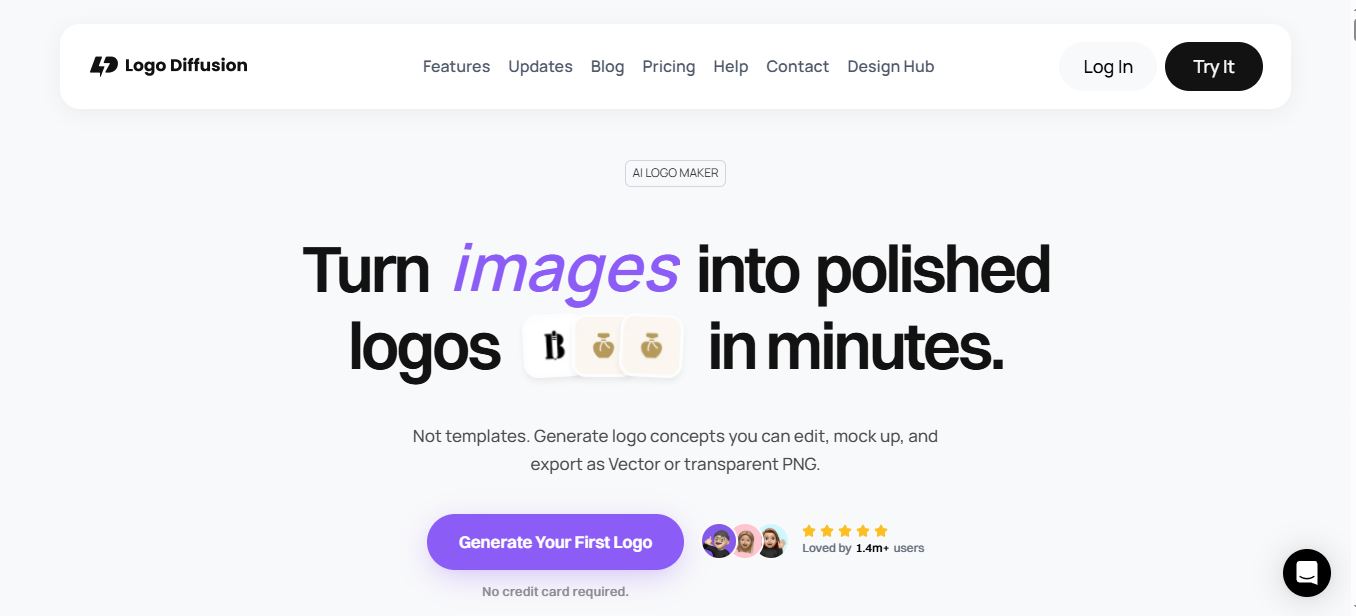
Logo Diffusion is an AI logo generator built on its own proprietary model — one trained specifically on logo design rather than general stock imagery, which is why the outputs actually look like logos instead of clip art. You can start from a text prompt, a sketch, or an existing image, and the platform gives you up to four concept options per generation across 45+ distinct logo styles (pictorial, mascot, monogram, badge, engraved, line art, retro, and more).
To get started, you can sign up using a Google account, a Discord account, or a plain email address. I always default to Google — it’s faster and I don’t have to remember another password. Once you’re in, the dashboard gives you access to Text to Logo, Magic Editor, Image to Logo, Image to Vector (Vectorizer), a Mockup Generator, Image to Image, an Image Upscaler, and a Background Remover — all under one roof, which is genuinely useful if you’d otherwise be stitching together three or four separate subscriptions.

The Discover Section: A Genuine Beginner’s Shortcut
One thing I appreciate is that even if you’re a complete beginner and have no idea how to write a prompt, there’s a Discover section right inside the dashboard that you can browse for ideas. If you spot something close to what you want, you click on it, copy the prompt, and edit it with your own details. That single feature probably saves new users more credits than any tutorial could, because it stops you from guessing blind on your first few generations.

How I Test Tools Like This
I don’t review software from a marketing page. Before I write anything, I create an account on the actual free tier, generate real assets using my own name and a real photo, and track exactly what each action costs — in time, in money, and in this case, in credits. For Logo Diffusion, that meant signing up with the Free plan (24 credits, no credit card) and running two separate workflows: Text to Logo and Image to Logo, followed by an edit attempt on each.
Test #1: Text to Logo — Generating From My Own Initials
This is how I actually tested it: I clicked into Text to Logo and asked the tool to generate a logo from the initials of my name, “Oyekale Olawale.” Then I clicked the Enhance button to let the AI sharpen my prompt before generating — a small but useful step if, like me, you’re not naturally great at writing detailed art-direction prompts. After generating, I ended up with two outputs I actually liked, shown below.

Of course, I could have kept editing it further, but I was on the Free plan, which only gives 24 credits total. By the time I’d generated and enhanced my way to those two outputs, 4 credits were already gone — before I’d touched a single edit tool.
Test #2: Image to Logo — Turning My Own Photo Into a Cartoon Mark
Next, I tested Image to Logo by uploading a photo of myself and asking it to convert the image into a cartoon-styled logo. The result is in the screenshot below, and it’s honestly one of the more surprising things I tested — no prompting required, just an upload and a style choice. That took 5 more credits from my balance. Since I wanted to clean it up, I clicked “Upscale this image,” which pulled 5 more credits. To be sincere, the upscale didn’t really improve much — the output looked almost identical to the pre-upscale version, just at a marginally higher resolution.

The Real Credit Math on the Free Plan
Here’s what actually happened to my 24 free credits over one testing session. This matches Logo Diffusion’s published per-action credit costs (Text to Logo at 2 credits/generation, Image to Logo at 5 credits/generation, and a 2× creative upscale at 5 credits) — so this isn’t a fluke, it’s the standard cost structure everyone on Free will hit.
My honest opinion after that session: Logo Diffusion is quite good, but the credit cost of generating a logo is a bit too much when you factor in the reality that you will always need to edit, upscale, or tweak something — and each of those actions costs roughly as much as generating a brand-new concept from scratch. That’s the part nobody tells you before you sign up.
Every Tool in the Dashboard, Explained
| Tool | What it does | Credit cost |
|---|---|---|
| Text to Logo | Prompt-based generation, up to 4 options per run, 11+ style presets | 2 cr/generation |
| Image to Logo | Upload a photo or existing logo, convert it into a new mark, no prompt required | 5 cr/generation |
| Magic Editor | Smart text swap inside a logo, on-brand variations, logo-to-icon-set | Varies by edit |
| Image to Vector | Layer-by-layer SVG export, keeps gradients (unlike most auto-tracers) | 5 cr (8 cr HQ) |
| Mockup Generator | Places your logo into generated product/scene mockups, up to 4K export | Varies by model |
| Image to Image / Style Transfer | Applies a texture or material style to your logo while keeping the structure intact | Varies by intensity |
| Image Upscaler | 2× or 4× upscale with a creativity slider for faithful vs. enhanced results | 2×: 5 cr · 4×: 20 cr |
| Background Remover | One-click transparent background, optimized specifically for logos/graphics | 2 cr/image |
Logo Diffusion Pricing — Plans Compared

I pulled this straight from Logo Diffusion’s live pricing page so the numbers below reflect what you’ll actually see today. If you want the full breakdown with per-tool credit math for every tier, I’ve put together a dedicated Logo Diffusion pricing guide that goes deeper than this section.
| Plan | Price | Credits | Vector export | Commercial rights |
|---|---|---|---|---|
| Free | $0/mo | 24/mo (~12 logos) | ✗ No | ✗ No |
| Starter Pack | $15 one-time | 300 credits | 3 exports (PNG+SVG) | Up to 3 logos |
| Basic | $24/mo | 1,000/mo (~500 logos) | ✓ Up to 200 | ✓ Yes |
| Pro (Most Popular) | $49/mo | 2,500/mo (~1,250 logos) | ✓ Up to 500 | ✓ Yes |
| Elite | $99/mo | 6,000/mo (~3,000 logos) | ✓ Up to 1,200 | ✓ Yes |
All plans come with annual billing that knocks 20% off the monthly price. My honest read after testing: unless you’re a designer or agency processing client logos weekly, the Starter Pack ($15 one-time) is the smartest first paid step — it gives you enough credits to actually finish a project instead of running out mid-edit like I did on Free.
Pros and Cons — The Balanced View
✅ What worked for me
- Text-to-Logo and Image-to-Logo both produced usable results on the first or second try
- The Discover section is a genuine shortcut for non-designers who can’t prompt well
- One dashboard for generation, editing, vectorizing, mockups, and background removal
- Prompt Enhance button noticeably improved my rough initial prompt
- Vector exports on paid plans keep real, editable layers — not auto-traced junk
❌ What frustrated me
- Free plan’s 24 credits disappear in one real editing session, not several
- My 2× upscale test barely changed the output despite costing 5 credits
- No vector export or file downloads at all on the Free tier
- Editing or upscaling costs nearly as much as generating something new
- No video or audio generation — you’ll need a separate tool for motion assets
Logo Diffusion vs. Magic Hour AI
I think Logo Diffusion is a genuinely good tool if you’re doing brand or design work, because it packs Text to Logo, Magic Editor, Image to Logo, Image to Vector, Mockup Generator, Image to Image, Image Upscaler, and Background Remover into one dashboard. I’ve noticed it’s similar to Magic Hour AI when it comes to image generation — the main difference is that Magic Hour also has video and audio generators, which Logo Diffusion doesn’t have yet. I recently tested Magic Hour separately; you can check my full review on it if you’re weighing the two for a broader creative toolkit rather than logos specifically.
| Feature | Logo Diffusion | Magic Hour AI |
|---|---|---|
| Logo-specific model | ✓ Yes, proprietary | ✗ General image/video |
| Vector/SVG export | ✓ Yes (paid plans) | ✗ No |
| Video generation | ✗ No | ✓ Yes |
| Audio generation | ✗ No | ✓ Yes |
What Surprised Me, and What Felt Clunky
What genuinely surprised me was the Image to Logo tool. I expected a rough, unusable output when I uploaded my own photo and asked for a cartoon-styled mark — instead, I got something I could realistically clean up and use. No prompt was required for that step; the AI read the image and offered style variations on its own, and I only needed to nudge it with a short direction toward “cartoon.”
What felt clunky, beyond the credit math I already walked through, was the disconnect between how the upscaler is marketed and what it actually delivered on my test image. The tool promises a “creativity slider” that lets you choose between a faithful upscale and a more enhanced one, but for a Free-tier 2× upscale, the visible difference on my cartoon logo was minimal — the file was technically larger, but not meaningfully sharper or cleaner. If you’re on a paid plan with more credits to spare, I’d lean toward testing the 4× option or the Quality vectorizer mode instead, since those seem to do more actual work per credit spent.
The Magic Editor is also worth calling out separately from the core generation tools, because it solves a real problem: once you’ve landed on a logo you like, you often need small variations — a different name inside the same mark, a color swap, or a matching icon set for social profiles. Logo Diffusion’s Smart Text Swap keeps the font, layout, and style intact while only changing the words, which is a meaningfully different (and more reliable) experience than regenerating from scratch and hoping the AI keeps the same visual language.
Real-World Use Cases
- Personal brand launch — generating a logo for your own social media accounts, exactly how I first started using it.
- Helping a friend’s side project — a handful of concept options in minutes instead of spending an evening in Illustrator from a blank canvas.
- Client concept boards — designers using Text to Logo and Image to Logo to produce quick starting points before finalizing manually.
- Social profile refresh — using the Vectorizer and Background Remover to turn an existing raster logo into a clean, transparent PNG or SVG set for avatars and headers.
- Merch and print-on-demand — exporting vectors and running them through the Mockup Generator to preview shirts, stickers, or packaging before committing to print.
Who Is Logo Diffusion Actually For?
- Solopreneurs and creators who need a logo for a personal brand or a friend’s side project — exactly my use case.
- Small business owners who need a fast, affordable mark without an agency retainer.
- Designers and freelancers who want rapid concept variations before finalizing in Illustrator or Figma.
- Agencies running high-volume client work, where Pro or Elite’s larger credit pools make per-logo cost genuinely low.
The way to actually enjoy this tool is to learn prompting well before you commit to a paid plan. If you go in without practicing on the free tier first, you’ll end up wasting a big chunk of your paid credits trying to edit and upscale your way to something usable — the same trap I hit during testing.
Alternatives Worth Comparing
If Logo Diffusion’s credit economics don’t fit your workflow, a few tools worth looking at instead:
- LogoAI — a more traditional AI logo generator with brand-kit bundling.
- LogoFast — a lighter, free-first logo generator I tested recently, good for quick throwaway concepts.
- Freepik — better if you also need stock assets, templates, and broader design resources beyond logos.
- Vheer AI — worth a look for general AI image generation outside strict logo/brand work.
- Design.com’s AI Logo Generator — a broader branding platform that bundles logo generation with business cards, social graphics, and full brand kits if you need more than just a mark.
If you’re also exploring 3D or product mockups for your finished logo, I’ve separately covered the best AI mockup generators I tested this year and did a deeper dive into ProVisual specifically, and if your brand needs a matching 3D asset later, Meshy AI is a solid companion tool for that. For motion versions of a finished mark, Magic Animator can bring a static logo to life in a single click.
FAQ
Is Logo Diffusion actually free?
Yes — the Free plan gives 24 credits per month (about 12 Text-to-Logo generations) with no credit card required. But it doesn’t include vector downloads, file exports, or commercial rights, so it’s realistically a testing tier rather than a production one.
How many credits does a single logo actually cost me?
Text to Logo runs 2 credits per generation and Image to Logo runs 5 credits per generation. But that’s just the starting point — vectorizing costs 5–8 more credits, a 2× upscale is 5 credits, and a 4× upscale is 20 credits. In my own test, getting from a rough concept to something upscaled cost 14 credits total.
Can I use Logo Diffusion logos commercially?
Not on the Free plan. Commercial usage rights kick in starting with the Starter Pack ($15 one-time, covering up to 3 logos) and are included on all monthly subscriptions from Basic upward.
Do I need design skills to use it?
No. Between the Enhance-prompt button and the Discover section full of remixable examples, I’d say this is one of the more beginner-friendly logo tools I’ve tested — the learning curve is in managing your credits, not in learning to design.
Does the upscaler actually improve logo quality?
In my test, a 2× upscale on a cartoon-style Image to Logo output cost 5 credits and made very little visible difference. Your results may vary by image complexity, but I’d recommend testing on a low-stakes generation before spending credits on upscaling something you actually plan to use.
The Bottom Line
After using Logo Diffusion for my own brand and for friends’ projects, my take is simple: it’s a legitimately capable AI logo maker with a genuinely useful all-in-one dashboard, but the Free plan is really a demo, not a workflow. If you’re testing the waters, spend your 24 credits on Text to Logo generations using the Discover section for prompt ideas — don’t waste them on upscaling until you’re sure you’ll keep the output. If you’re ready to actually finish a brand, the Starter Pack or Basic plan removes the credit anxiety entirely and gets you to real vector files and commercial rights.


